
GuideImages
Make an image
The short answer
Open Create, switch it to Image, describe the picture in the prompt and press Generate. Your image lands in your Library under Creations.
On this page6 sections
Before you start
What you need
- An idea for one picture, in your own words.
- An OpenClips account. You can start without one and sign up when you press Generate.
Who can use it
Every plan: Free, Starter, Creator, Pro and MAX.
Models marked with a lock unlock with your first purchase.
What it costs
From ⚡1 an image. See every price
The Generate button shows the exact price before you press it. The price depends on the model and the quality.
Steps
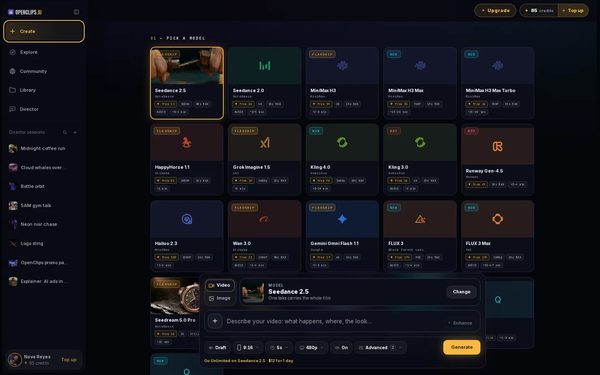
Open Create
Press Create in the App menu.
On a phone: Tap Create in the menu. The full-screen Create video composer opens.
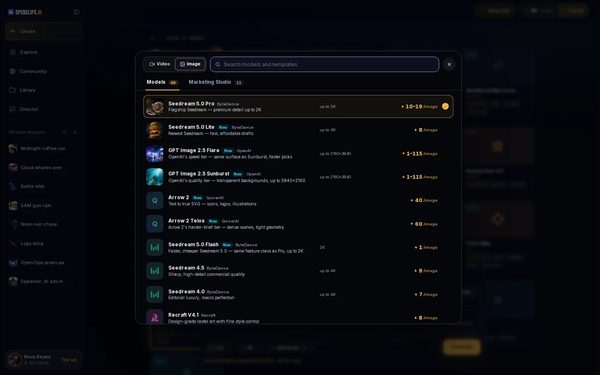
Switch to Image and pick a model
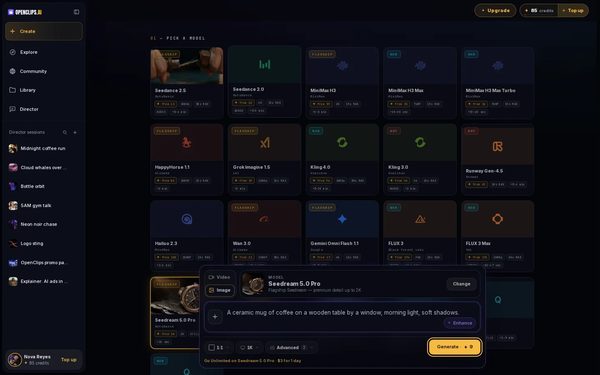
Choose Image beside the model card. Then press Change and pick a model from Models. Each model shows its price.
On a phone: Tap Change on the model card, tap Image at the top and pick a model from Models. The composer becomes Create image.
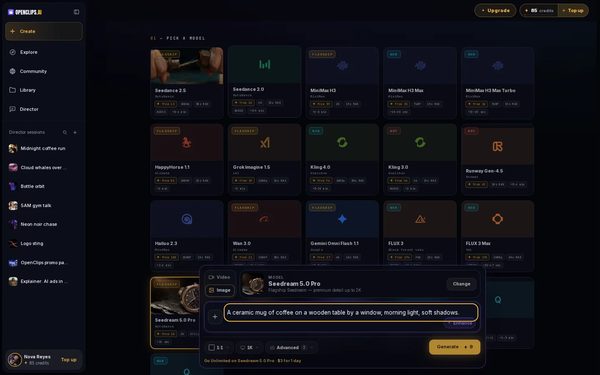
Describe the picture
Write what is in the picture in the prompt: the subject, the setting, the light and the style. For example: “A ceramic mug of coffee on a wooden table by a window, morning light, soft shadows.”
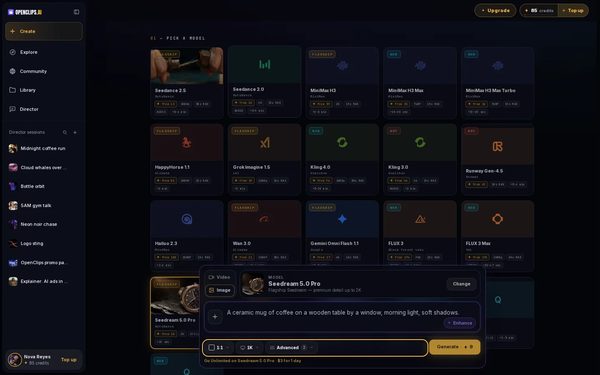
Set the shape and quality
Use the pills under the prompt to set the shape and the quality.
On a phone: Use the tiles Shape and Quality.
Press Generate
Press Generate. The button shows the exact price before you press it, and credits are taken only when the render starts.
Find it in your Library
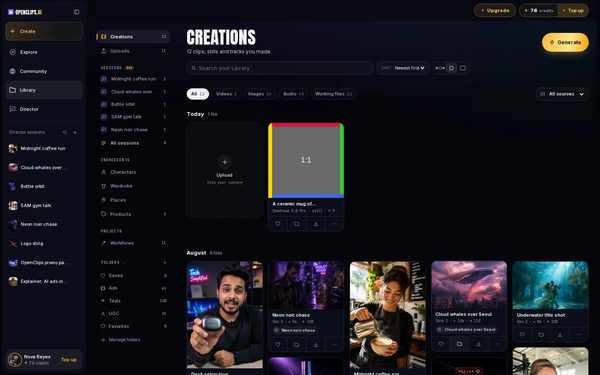
Your image lands in your Library, under Creations.


What you get
An image of the picture you described, in your Library under Creations.
Tips and limits
- Describe one picture per prompt. For a set, make one image at a time.
- A model that can’t make what a setting asks for greys that option out and says why.
- To make it bigger and sharper, see Upscale an image.
- To make the image move, see Animate a photo.
If something goes wrong
- The button says Top Up instead of Generate: your balance is too low for this image.
Questions
Which model should I pick for an image?
Each model shows its price and what it is best at in the picker. Compare them side by side on the AI image models page.
What should a good image prompt say?
Say what is in the picture, where it is, the light and the style. For a photo look, name the lens or the time of day.
Can I start from a photo of my own?
Yes. Press + and add it, then say what to change. See Edit a photo.
Can I try it without an account?
Yes. Write your prompt on the AI image page and press its button. OpenClips asks you to sign up when you press Generate.
Related
Steps checked in the app Updated