AI Product Photography: Studio Shots From One Phone Photo
One clean phone photo of your product becomes studio, lifestyle and ad shots. The hard part is not the scene, it is the label: here is how to get six selling shots and keep the product honest.
Scene select — 10 scenes
AI product photography turns one clean phone photo of your product into studio, lifestyle and ad shots. You attach the photo to an image model such as Nano Banana Pro as a reference, describe the scene, and the model keeps your real product while it builds the set, the light and the shadows around it.
How to do it in six steps:
- Shoot one sharp photo of the product by a window, on a plain background.
- Pick the shots you need, each tied to where it will be used.
- Paste a product lock line and a scene prompt into Nano Banana Pro.
- Use Seedream 5.0 Pro when brand colours or printed text must be exact.
- Check every word on the label at 100% zoom.
- Turn the best still into a product video.
The hard part is not the scene. It is the label. A model can quietly redraw your logo, change the cap colour or invent a word, and a wrong label on a listing costs more than a bad background. This guide gets you the shots and keeps the product honest.
Why not just remove the background?
“Background removal” is one of the fastest growing AI searches, at around 1 million searches a month and up 641% (directional, Rising Trends and Exploding Topics). Most people want the same thing: their product, minus the kitchen table.
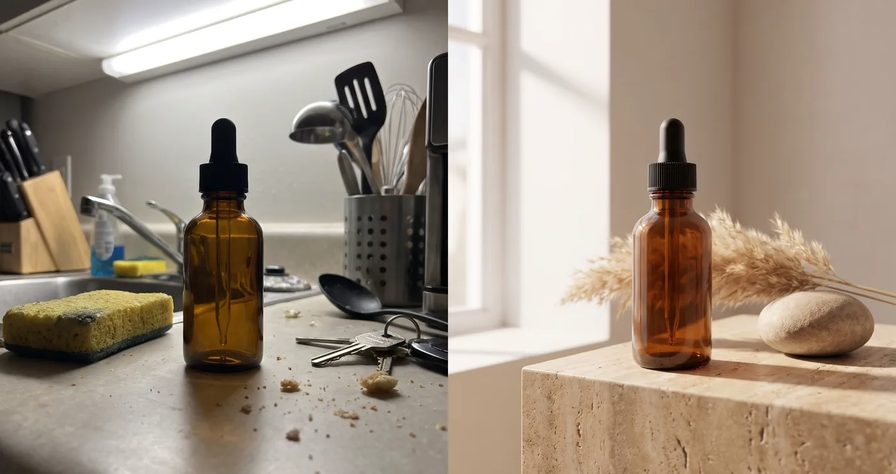
A cut-out dropped onto a stock scene rarely looks real. The light on the bottle does not match the room, and nothing grounds it on the surface. A model that takes your photo as a reference rebuilds the whole frame instead, so the light wraps the product, the contact shadow lands under it and reflections match the scene.
Step 1: shoot the one phone photo the model needs
Every shot downstream inherits this photo, so its flaws travel with it.
- Light: beside a window, daylight, no direct sun. Turn off room lights so colours do not mix.
- Background: a white sheet or paper curved up the wall behind the product.
- Angle: straight on, lens at label height, product centred and filling most of the frame.
- Label: tap to focus on the text. If you cannot read it on your phone, the model cannot either.
- Clean it: wipe dust and fingerprints, or they become part of the product.
- Only have a video? One sharp frame from it can work as the reference. See the packshot in Step 4.
- Extra angles: add a three-quarter view and the back label. Google’s docs say Nano Banana Pro holds up to 6 object images with high fidelity, so a second angle stops it guessing the sides.
Step 2: the six shots every store needs
The most useful habit, and the one our video is built on: for every shot, say where you will use it. The placement decides the frame, the background and how much room you leave for text.
| Shot | Where it goes | Frame |
|---|---|---|
| 1. White background | Marketplace main image, catalogue | 1:1 |
| 2. Lifestyle scene | Product page, Meta and Pinterest ads | 4:5 |
| 3. Splash or ingredient close-up | Scroll-stopping ad, A+ content | 4:5 or 1:1 |
| 4. In hand | Shows real size, reads as UGC | 4:5 or 9:16 |
| 5. Flat lay | Bundles, “what’s inside”, Instagram | 1:1 or 4:5 |
| 6. Banner with headline space | Store hero, seasonal and Black Friday offers | 16:9 or 9:16 |
Not sure which ratio a placement needs? The aspect ratio cheat sheet covers every feed.
Watch: Nano Banana Pro Product Photography: Studio Shots From One Phone Photo. One phone photo of a hot sauce becomes six selling shots at 1:11, each named for its placement, with the same label on every bottle and a one-message marble background edit at 1:32.
Step 3: copy-paste prompts for Nano Banana Pro
Google’s guide for product mockups says to name the product, the surface, the lighting setup, the camera angle, the focus detail and the frame. Every prompt below follows that order and starts with the same product lock, pasted word for word:
PRODUCT LOCK: Image 1 (and Image 2) show the exact product. Keep its shape,
colours, cap, label layout and every word on the label exactly as in the
reference. Do not redesign, rename, add or remove any text or logo.
Do not use the reference background.
These are templates written to Google’s guidance, not prompts we have rendered. Swap the brackets and treat them as starting points.
[PRODUCT LOCK]
Ecommerce packshot of the product for a marketplace main image. Front view,
centred, filling about 85% of the frame. Pure white seamless background,
even three-point softbox lighting, a very soft contact shadow under the base.
Whole label in sharp focus. No props, no text, no other objects. 1.
[PRODUCT LOCK]
For a product page. The product stands on a [light oak bathroom shelf] beside
[a folded linen towel and a small green plant]. Soft morning window light
from the left. Eye-level, 50mm lens look, shallow depth of field, label sharp
and facing the camera, background softly blurred. 4.
[PRODUCT LOCK]
For a scroll-stopping ad. The product upright on [wet dark slate], a frozen
splash of [clear water / golden serum] arcing behind it, droplets on the glass.
Low 45-degree angle, hard backlight making the liquid glow, dark background.
The brand name on the label stays sharp and readable. 4.
[PRODUCT LOCK]
For a UGC-style ad. A hand with short, natural unpainted nails holds the
product at chest height, label facing the camera, fingers not covering any
text. Soft daylight, blurred [bright apartment] behind, casual phone-photo
look, slight natural grain. 4.
[PRODUCT LOCK]
For Instagram. Top-down flat lay on [warm beige linen]. The product lies in
the centre, label up, surrounded by [three orange slices, a sprig of rosemary
and a cotton pad] with clean space between objects. Soft diffused overhead
light, minimal shadows. 1.
[PRODUCT LOCK]
For a store banner. The product on a [glossy black pedestal] in a [dark
charcoal studio], one warm spotlight from above, [subtle gold confetti] far in
the background. The right 40% of the frame is empty and calm for a headline.
No text in the image. 16.
Black Friday 2026 is 27 November and Cyber Monday 30 November, so make shot 6 this week, not on the 26th. Keep the headline space empty (Google’s “negative space” advice) and add the offer in your design tool, where the price is guaranteed right.
On OpenClips: open the image generator, pick Nano Banana Pro, attach your phone photos as references, set resolution and frame, check the ⚡ quote on the button and generate. More on the model in What is Nano Banana. Open Nano Banana Pro →
| Modality | Image |
|---|---|
| Resolutions | 1K, 2K, 4K |
| References | Up to 11 |
| Price | from ⚡31 (from $0.128) |
The fast route: all six from one ChatGPT message
The video above skips the composer. With OpenClips connected to ChatGPT (setup video), open a new chat, click the plus, pick OpenClips, paste a link to your photo and ask for every shot at once. A message in that spirit (our wording):
Use Nano Banana Pro on this product photo: [link to your photo].
Make six product photos and keep the label exactly the same in every one:

pure white background for my Amazon main image, 2) a splash shot for ads,[a lifestyle scene] for my store page, 4) [a moody brand-story scene],a flat lay for Instagram, 6) a 16 banner with empty space for a headline.
In the video, ChatGPT plans each shot for its placement and shows the price before anything runs. It asks once for permission to use OpenClips, and a few minutes later the six photos are in the chat. Edits work the same way: one more message swaps the background, and the label stays put.
Step 4: the same shots on Seedream 5.0 Pro
Seedream 5.0 Pro is ByteDance’s image model, released on 8 July 2026. BytePlus says it understands colour codes and material requirements and renders text in 14 languages. Its references, resolutions and starting price on OpenClips:
| Modality | Image |
|---|---|
| Resolutions | 1K, 1.5K, 2K |
| References | Up to 10 |
| Price | from ⚡10 (from $0.042) |
Reach for it when a brand colour must be exact or the image needs printed words. Name the colours first, then the scene, and put any text in quotation marks:
Image 1 is the exact product: keep its shape, label and logo unchanged.
Brand colours: background #F4E9DC, accent #1F3A5F.
The product stands on a matte ceramic plinth in #1F3A5F against a seamless
#F4E9DC backdrop, soft top light, gentle shadow to the right.
Small clean sans-serif text in the top left corner: "New formula".
Nothing else written in the image. 1.
Run this prompt →
The OpenClips model page positions Seedream 5.0 Pro for stills and sends photoreal edits to Nano Banana. So: Seedream for colour-exact sets and on-image text, Nano Banana Pro for photoreal scenes and edits of your real photo.
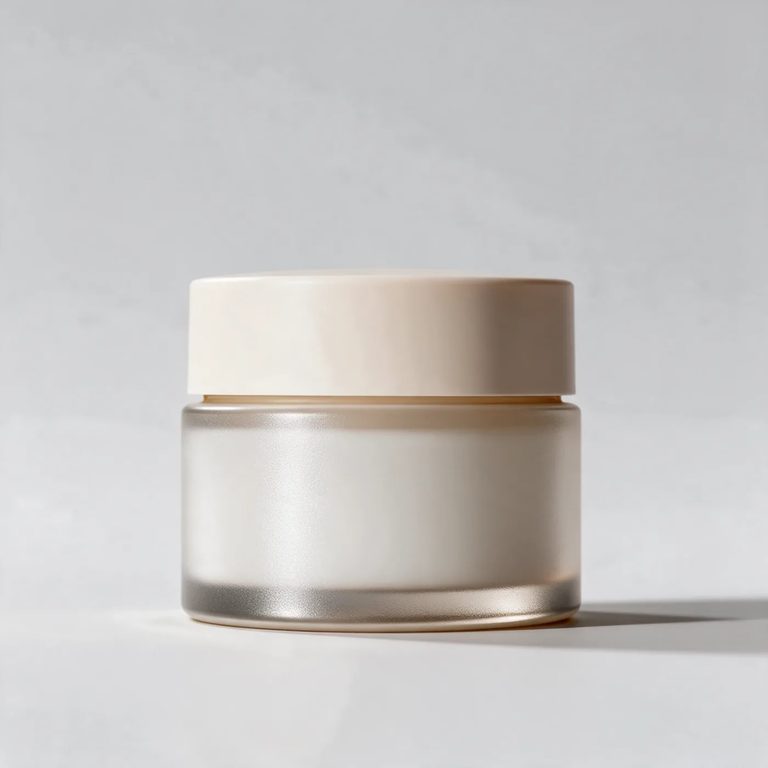
It also copes with a rough input. For the packshot below, the only reference was a single frame of the jar taken from a video, not a studio photo, and the result came back in about a minute and a half. It was not made with the prompt above, and the jar has no label, so it shows the clean set and the shadow, not label accuracy. Run Step 5 on your own product either way.
Step 5: check the label before anything ships
Every AI product photo needs a fidelity pass. Open it at 100% next to your phone photo and check:
- Every word on the label: spelling, order, size.
- Logo: same shape, same colour, nothing added or missing.
- Cap, pump, finish: matte stays matte, gold stays gold.
- Proportions: the bottle did not grow taller or slimmer.
- Extra text: no invented badges, sizes or claims.
- Hands: five fingers, none over the label.
When something is off, do not rewrite the prompt. Google’s guide for edits says to describe only the change and state what stays the same:
Using the image above and Image 1 as the product reference: correct the label
so the text matches Image 1 exactly. Keep the scene, light, composition
and everything else unchanged.
Still drifting? Attach the back-label photo as another reference, reshoot a sharper input, or move up a resolution. Last resort: keep the generated scene and place your real label photo on top in a design tool.
Amazon rules for the main image
Shot or generated, your main image has to pass the marketplace. Amazon’s rules, as listed by Amazon staff on the Seller Forums:
- Pure white background, RGB 255, 255, 255.
- The product fills at least 85% of the frame.
- No added words, artwork or watermarks.
- The real item, not an illustration.
- No props or accessories that are not part of the sale.
- At least 1000 pixels on the longest side, as JPEG, TIFF or PNG.
Amazon’s help article on non-white backgrounds says a listing can be suppressed from search until its images comply. Two checks for AI shots:
- The product must match what ships. If Step 5 fails, it is not a main image.
- Sample the white. Open the file in any editor and read the background colour. If it is not 255, 255, 255, fix it there.
Lifestyle, splash, in-hand and banner shots belong in secondary image slots and ads, where scenes are allowed. Apparel, jewellery and some other categories have their own style guides, so check yours. If an AI-generated person appears in an ad, check Meta’s and TikTok’s AI labelling rules before you post.
Step 6: turn the best still into a product video
You now have a product photo that works. There are three ways to get a video from it on OpenClips.
| Route | Start from | Best for |
|---|---|---|
| Seedance 2.5, first frame | Your hero still plus your own camera move | Full control, store page loops |
| Composer templates | One product photo, pick POV hands or Product hero | Quick TikTok, Reels and store videos |
| Marketing Studio | A product link or one photo | Template picks ranked for your product |
Seedance 2.5 from your still. Attach the hero still, write “@Image1 serves as the first frame” and describe one slow move. A template (not rendered by us):
@Image1 serves as the first frame. Keep the product, its label and logo
exactly as in @Image1 for the whole clip.
Slow push-in toward the product over 5 seconds, soft light shifts gently
across the glass, a few dust particles drift in the light.
The product does not move by itself. No text appears. Soft ambient room tone.
Run this prompt →
| Modality | Video |
|---|---|
| Length | 4s to 30s |
| Resolutions | 480p, 720p, 1080p |
| Audio | Available |
| References | Up to 30 |
| Price | from ⚡51 per render (from $0.052/s) |
Move the camera, the light or a hand, never the product itself. In our ad work, objects that animate on their own read as fake. More options in the best free image to video AI tools.
Templates in the composer. Click Change, open Templates and pick a format, add your product and say what should happen.
Watch: AI Product Video Generator: Make a Product Video Ad From One Photo. One photo of headphones becomes a POV hands ad for TikTok and Reels at 0:22, then a Product hero video in slow, moody studio light for the store page at 1:01.
No sample in hand? Start from the link
Selling something still in a supplier’s warehouse? Marketing Studio reads a product link, or takes one photo and a few words, and ranks video templates for that product.
Watch: How to Make Product Videos Without the Product (AI Video Ads From a Link or One Photo). From 1:13, a single mug photo goes into Marketing Studio and comes out as a vertical Lifestyle montage; the start of the video does the same from a product link.
Make your product video on OpenClips →
What AI product photography costs on OpenClips
Every render shows its price on the Generate button before you click, and the spec cards above carry each model’s starting price. One credit balance covers Nano Banana Pro, Seedream 5.0 Pro and Seedance 2.5. Full breakdown in how credits work.
Troubleshooting: symptom, cause, fix
| Symptom | Likely cause | Fix |
|---|---|---|
| Label text misspelled | Blurry input, small text | Sharper photo, add a label close-up as a reference, run the edit prompt |
| Logo redesigned | No lock line | Paste the PRODUCT LOCK block into every prompt |
| Product looks pasted in | Scene light does not match | Name the light direction and ask for a contact shadow |
| Wrong cap colour | Model guessed the side | Add a three-quarter photo |
| Background not pure white | Model added a gradient | Ask for “pure white seamless”, then sample and fix to 255 |
| Hand covers the label | Grip not described | Add “fingers not covering any text” |
| Product melts or wobbles in video | Prompt asked the product to move | Move the camera, keep the product still |
One phone photo, six selling shots, one product video. New to OpenClips? Start free with ⚡50 on signup, no card.
Sources, read on 29 October 2026: Google’s “Introducing Nano Banana Pro” and its Gemini API image generation docs, BytePlus’s Seedream 5.0 Pro page, the OpenClips model pages for Nano Banana Pro, Seedream 5.0 Pro and Seedance 2.5, OpenClips pricing, an Amazon staff reply on the Seller Forums on main image requirements, and Amazon Seller Central’s help article on non-white backgrounds.