
GuideVideo
Animate a photo
The short answer
Open Create, choose Video, add your photo with + and use it as the First frame, then press Generate. The video starts on your photo and lands in your Library under Creations.
On this page6 sections
Before you start
What you need
- One photo: JPG, PNG or WebP.
- An OpenClips account. You can start without one and sign up when you press Generate.
Who can use it
Every plan: Free, Starter, Creator, Pro and MAX.
Models marked with a lock unlock with your first purchase.
What it costs
From ⚡4 a clip. See every price
The Generate button shows the exact price before you press it. It depends on the model, the length and the quality.
Steps

Open Create
Press Create in the App menu, then choose Video.
On a phone: Tap Create in the menu or at the bottom of your home screen. The full-screen Create video composer opens.

Pick a video model
Press Change on the model card and pick a model from Models. If a model can’t use a photo, the add menu tells you and names one that can.

Add your photo
Press + next to the prompt, choose Upload from your device and pick your photo.
On a phone: Tap +, then Take a photo to shoot one now, or Upload from your device.

Start the video on it
If the composer asks How to use it?, choose First frame. The video starts on this photo.
Say what should move
Write what happens in the prompt: how the camera moves, or what the person or thing in the photo does. For example: “The camera slowly pushes in. Soft light moves across the photo.”

Set shape, length, quality and sound
Use the pills under the prompt to set the shape, the length in seconds, the quality and the sound. Every option shows its own price.
On a phone: Use the tiles Shape, Length, Quality and Sound.

Press Generate
Press Generate. The button shows the exact price in credits before you press it, and credits are taken only when the render starts.
Find it in your Library
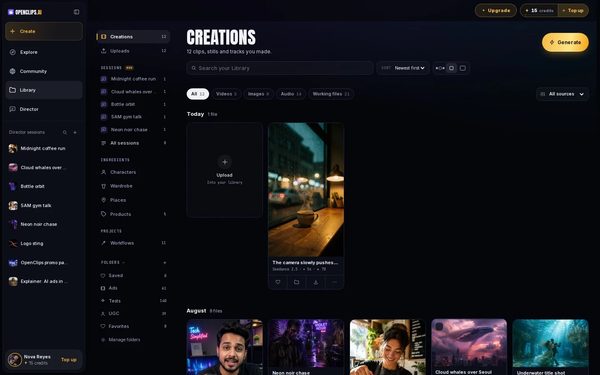
Your video lands in your Library, under Creations. While your video renders, its card says how long that model usually takes.


What you get
A short video that starts on your photo, in your Library under Creations.
Tips and limits
- With a photo as the first frame, some lengths or shapes may not be offered. The composer greys them out and says why.
- To end on a second photo, pick a model that offers First & last frame and add both photos.
- Choose Reference instead to keep your photo’s look and style without starting on it.
- Some models always add sound and show no sound switch. Their line in Models ends with Sound.
If something goes wrong
- The video failed: a failed render gives its credits back.Fix
- The button says Top Up instead of Generate: your balance is too low for this video.
Questions
Can I animate a photo without an account?
You can start without one. On the Image to Video page, press Start with a photo and choose Make it move. The composer opens with your photo, and you create an account when you press Generate.
Which photo files work?
Upload a JPG, PNG or WebP from the add menu. On a phone you can also take one right away with Take a photo.
How long does it take?
While your video renders, its card in your Library shows how long that model usually takes.
Related
Steps checked in the app Updated