
GuideCharacters
Make your AI twin
The short answer
Open your Library, go to Characters and press Upload a photo and voice, then add one clear photo of your face. Name your character and press the button with that name, such as Create Mia, and OpenClips learns the face so the face stays the same in every video.
On this page6 sections
Before you start
What you need
- One clear photo of your face: good light, looking at the camera, just you.
- An OpenClips account. You can start without one and sign up when the Library asks.
Who can use it
Every plan: Free, Starter, Creator, Pro and MAX.
Models marked with a lock unlock with your first purchase.
What it costs
From ⚡5 a clip. See every price
That is what a video with your character costs. Learning the face is paid once, and its price shows under the name before you create the character.
Steps
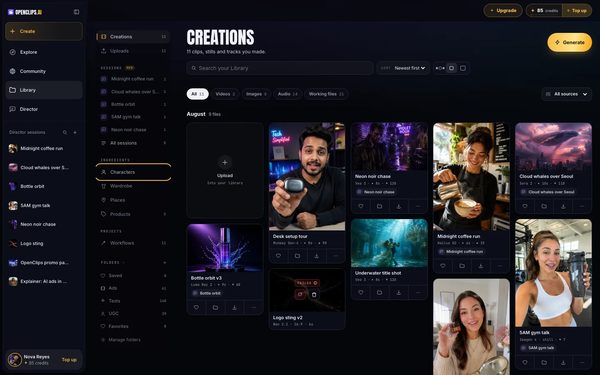
Open Characters
Press Library in the App menu, then press Characters in the side list.
On a phone: In your Library, tap Creations at the top, then tap Characters.
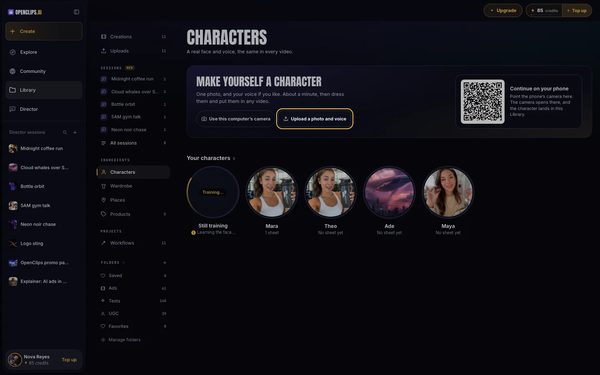
Start with a photo
Under Make yourself a character, press Upload a photo and voice. The screen Your photo and your voice opens.
On a phone: Under Make yourself a character, tap Upload a photo and voice instead. The screen Your photo and your voice opens.
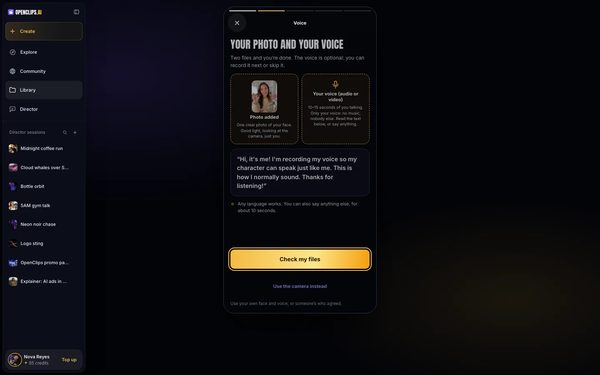
Add your photo
Press Your photo and pick one clear photo of your face. The box says Photo added. Then press Check my files.
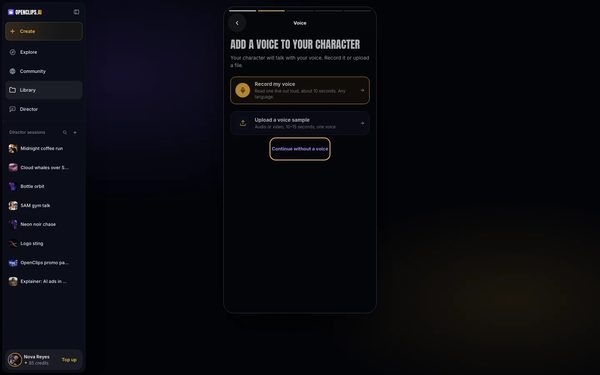
Skip the voice for now
OpenClips checks the photo. When the screen Add a voice to your character opens, press Continue without a voice.
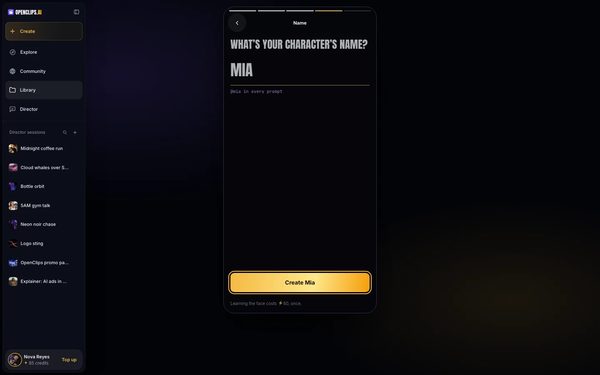
Name your character
Type a name under What’s your character’s name?. The button takes the name: for Mia, press Create Mia.
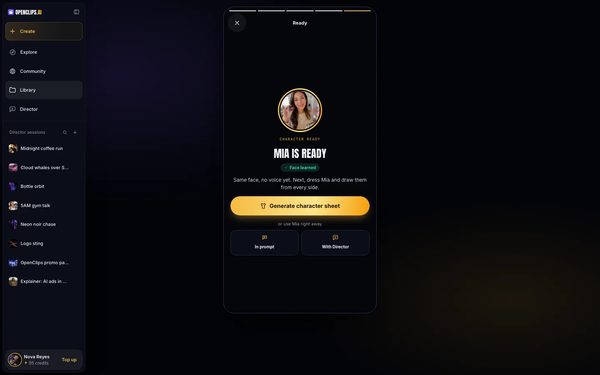
Wait for the face
The screen says Mia is ready while OpenClips learns the face. When the face is learned, the label under the name says Face learned.


What you get
Your character in your Library under Characters, with the same face in every video you put them in.
Tips and limits
- To take the photo now instead, press Use this computer’s camera, or tap Start with the camera on a phone.
- On a computer, scan the code under Continue on your phone to take the photo with your phone. The character lands in the same Library.
- Call your character by name in a prompt, with @ in front: @mia in every prompt, as the name screen says.
- Next, put your character in a video.
If something goes wrong
- The check says Almost there: the photo needs one face, clearly visible, in good light. Press Take a new photo and try another.
- The button says Name them to continue: type a name first.
- Generate waits while the face is learned. Add the character to your prompt now, and press Generate once the label says Face learned.
Questions
What photo should I use for my AI twin?
One clear photo of your face. The app asks for good light, eyes on the camera and just you in the picture.
Can I make a character of someone else?
Only of someone who agreed. The app says Use your own face and voice, or someone’s who agreed. See Character Studio for the full terms.
Can I use my character before the face is learned?
Yes. You can add the character to a prompt at once. Generate unlocks once the face is learned.
Does my AI twin need a voice?
No. The voice is optional. To give your character your voice, see Add a voice to your character.
Related
Steps checked in the app Updated