
GuideCharacters
Put your character in a video
The short answer
In the composer, press +, choose A character and pick your character under Your characters. Then write what they do, calling them by name with @ in front, and press Generate.
On this page6 sections
Before you start
What you need
- A character in your Library. See Make your AI twin.
- An OpenClips account. You can start without one and sign up when you press Generate.
Who can use it
Every plan: Free, Starter, Creator, Pro and MAX.
Models marked with a lock unlock with your first purchase.
What it costs
From ⚡5 a clip. See every price
The Generate button shows the exact price before you press it.
Steps
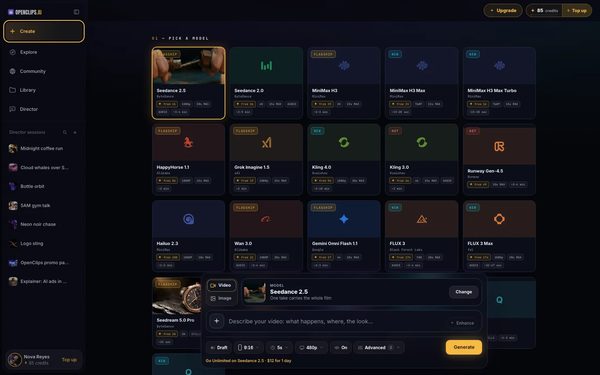
Open Create
In the App menu, press Create. The composer opens on Video.
On a phone: Tap Create in the menu. The full-screen Create video composer opens.

Choose A character
Press + beside the prompt. In Add to your video, choose A character.

Pick your character
The sheet Add a character opens. Under Your characters, press your character. The character lands above the prompt, marked Character.
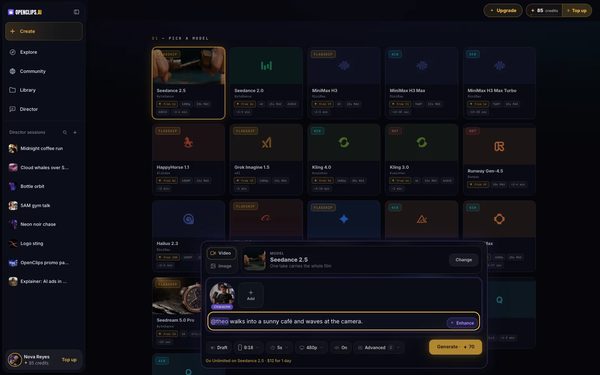
Say what they do
Write what happens in the prompt. Call the character by name with @ in front, such as @theo.
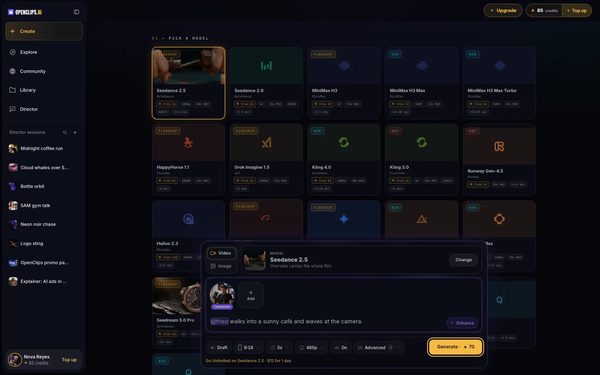
Press Generate
Press Generate. The button shows the price first.


What you get
A video with your character in it, in your Library under Creations.
Tips and limits
- No character yet? In Add a character, press Use yourself to take a photo and add your voice, or Upload a photo to start from one you have.
- The same + adds a product too: choose A product.
If something goes wrong
- A character is not in the menu: the model takes no picture, or reads every photo as a frame. Press Change and pick another model.
- Generate waits: the character’s face is still being learned. Press Generate once the character’s page says Face learned.
- The video failed.Fix
Questions
Which models can take my character?
The models whose + menu shows A character. On a model that takes no picture, or reads every photo as a frame, the row is not there.
How do I make the character say something?
Write it in the prompt, after the character’s name. To give the character your voice, see Add a voice to your character.
Can I put my character in a video from the Library?
Yes. Open the character in Characters, press Use character, then Use in prompt. The composer opens with the character added.
I don't have a character yet. Where do I start?
Make one first. See Make your AI twin, or read about Character Studio.
Related
Steps checked in the app Updated