
GuideCharacters
Add a voice to your character
The short answer
While you make a character, the screen Add a voice to your character asks for your voice. Press Upload a voice sample and pick a short recording of you talking, or press Record my voice and read one line out loud.
On this page6 sections
Before you start
What you need
- One clear photo of your face, to make the character.
- A short recording of you talking, as an audio or video file. You can record it in the app instead.
- An OpenClips account. You can start without one and sign up when the Library asks.
Who can use it
Every plan: Free, Starter, Creator, Pro and MAX.
Models marked with a lock unlock with your first purchase.
What it costs
From ⚡5 a clip. See every price
That is what a video with your character costs. The name screen shows the one price of making the character, before you create them.
Steps
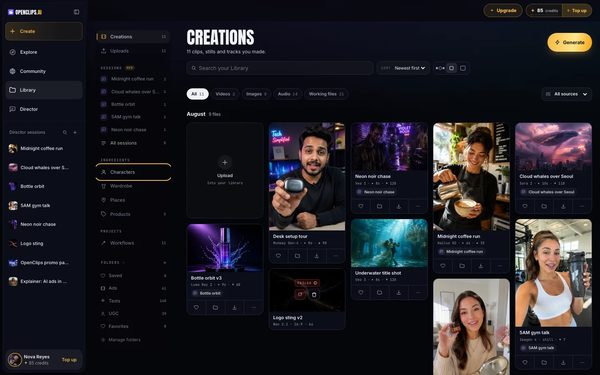
Open Characters
Press Library in the App menu, then press Characters in the side list.
On a phone: In your Library, tap Creations at the top, then tap Characters.
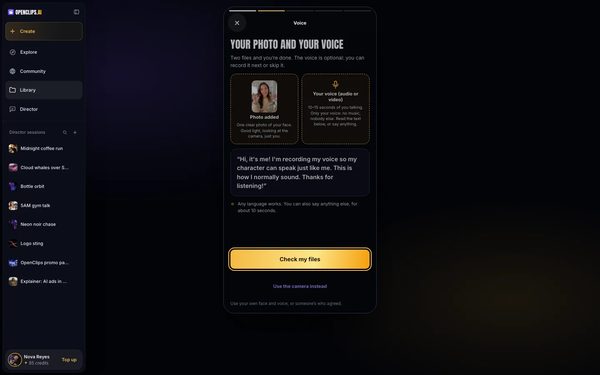
Start a character
Press Upload a photo and voice, then press Your photo and pick one clear photo of your face. Press Check my files.
On a phone: Tap Upload a photo and voice instead, then tap Your photo and pick one clear photo of your face. Tap Check my files.
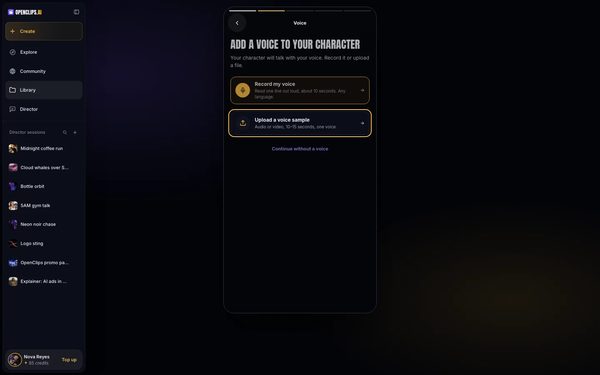
Add your voice
The screen Add a voice to your character opens: your character will talk with your voice. Press Upload a voice sample and pick a recording of you talking. OpenClips checks for One clear voice, then the name screen opens.
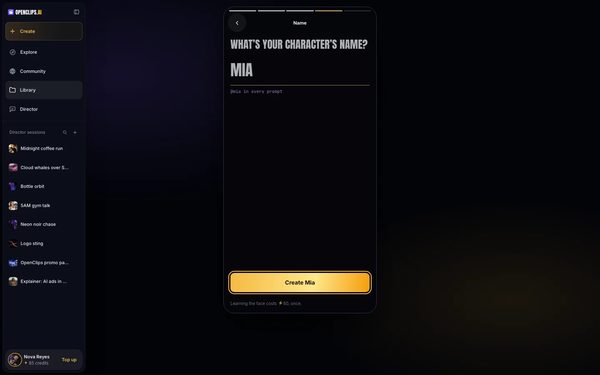
Name your character
Type a name under What’s your character’s name?. For Mia, press Create Mia.
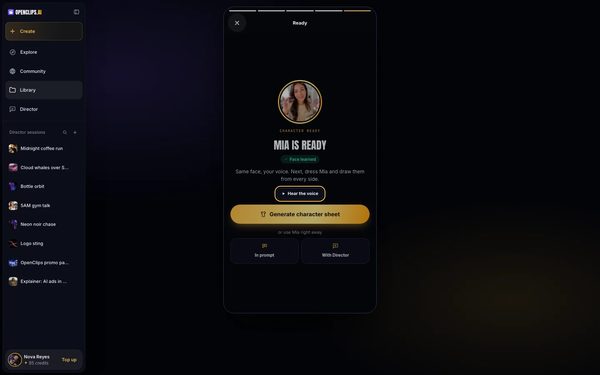
Hear the voice
The screen says Mia is ready: same face, your voice. Press Hear the voice to play it.


What you get
Your character in your Library under Characters, with your face and your voice.
Tips and limits
- To record instead of uploading, press Record my voice and read the line on screen out loud.
- On the screen Your photo and your voice, you can add both files at once: press Your voice (audio or video) after the photo.
- Next, put your character in a video.
If something goes wrong
- The check says Almost there: the recording needs one clear voice. Press Record again, or pick another file.
- You made a character without a voice. Make the character again from the same photo, and add the voice this time.
Questions
Whose voice can I add?
Your own, or the voice of someone who agreed. The app says Use your own face and voice, or someone’s who agreed. See Character Studio for the full terms.
What makes a good voice sample?
You talking, alone. The app asks for only your voice, with no music and nobody else. Read the line on screen, or say anything, in any language.
Do I have to add a voice?
No. Press Continue without a voice, and your character keeps the face without a voice.
How do I hear my character's voice?
When the character is ready, press Hear the voice under the name.
Related
Steps checked in the app Updated