
GuideLibrary & sharing
Share a video link
The short answer
Open the video in your Library and press Share. Press Copy to copy its link, or send it straight to WhatsApp, X, Facebook or Telegram.
On this page6 sections
Before you start
What you need
- An OpenClips account with at least one video in it.
Who can use it
Every plan: Free, Starter, Creator, Pro and MAX.
Models marked with a lock unlock with your first purchase.
What it costs
From ⚡2 a clip. See every price
That is what making a video costs. Sharing a video you made costs nothing.
Steps
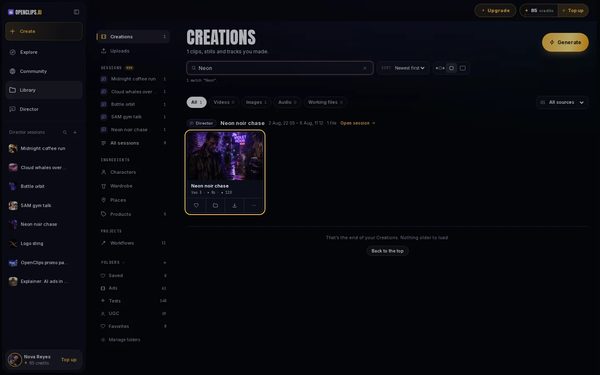
Open the video
In your Library, press the video you want to share. It opens full size.
On a phone: In your Library, tap the video you want to share. It opens full size.
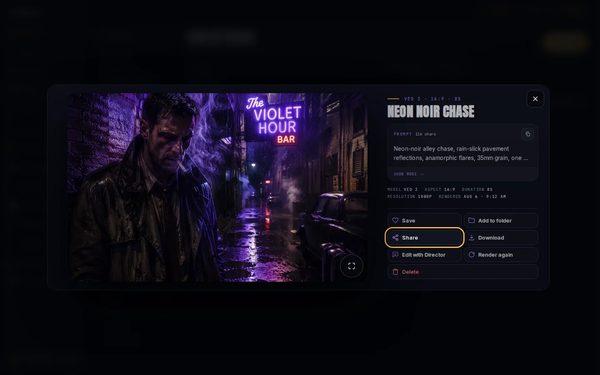
Press Share
Press Share. The Share this clip box opens and makes the video’s link.
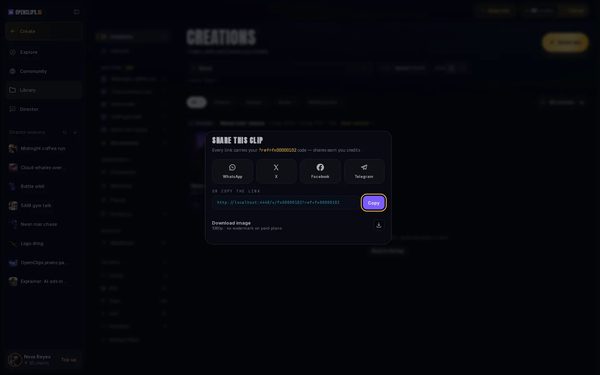
Copy or send the link
Press Copy, then paste the link wherever you want it. To send it straight to an app, press WhatsApp, X, Facebook or Telegram instead.
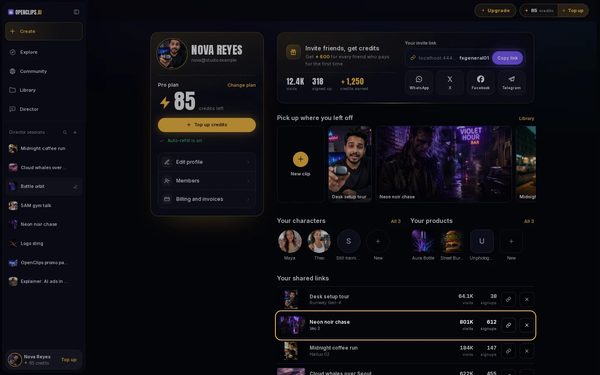
Find it on your profile
Your profile lists every link you share under Your shared links, with the visits and signups each one brought. To open your profile, press your name at the foot of the App menu, then your name at the top of the Account menu.
On a phone: Your profile lists every link you share under Your shared links, with the visits each one brought. To open it, tap Open menu, then your name at the foot of the menu, then your name at the top of the Account menu.


What you get
A link to the video’s own page, where anyone can watch it. If the workspace is yours, the link also carries your invite code, so a friend who signs up from it counts as yours.
Tips and limits
- The ⋯ button under a card has Share too. It copies the link at once, without opening the box.
- Beside each link on your profile, the copy button copies that link again.
- To stop sharing a video, see Take a share link down.
If something goes wrong
- The box shows no link: close it and press Share again.
- A friend sees Nothing plays here: the link was taken down. Share the video again, and it gets a new link.
Questions
Can people watch my video without an account?
Yes. The link opens the video’s own page, and anyone can watch it there.
Do I earn anything when people sign up from my link?
Yes, when the workspace is yours. Its links carry your invite code. See Invite friends and earn credits.
Can I stop sharing a video later?
Yes. Take the link down from your profile, and it stops working at once. See Take a share link down.
Related
Steps checked in the app Updated