
Turn on Auto-refill
The short answer
Open Billing, press Turn on auto-refill, choose a refill amount and a card, then confirm. OpenClips then tops you up on its own whenever your balance drops below the amount shown.
On this page6 sections
Before you start
What you need
- An OpenClips account.
- A card saved in Billing. Auto-refill charges a saved card.
Who can use it
Every plan: Free, Starter, Creator, Pro and MAX.
Models marked with a lock unlock with your first purchase.
Anyone allowed to pay for the workspace can turn it on.
What it costs
From ⚡2 a clip. See every price
That is what making a video costs. Auto-refill costs nothing to turn on. Each refill is a top-up, and here is what each amount adds at the pay-as-you-go rate:
| Top-up | Credits |
|---|---|
| $10 | ⚡800 |
| $25 | ⚡2,000 |
| $50 | ⚡4,000 |
| $100 | ⚡8,000 |
| $200 | ⚡16,000 |
On a paid plan, the sheet shows what each amount adds at your plan’s rate.
Steps

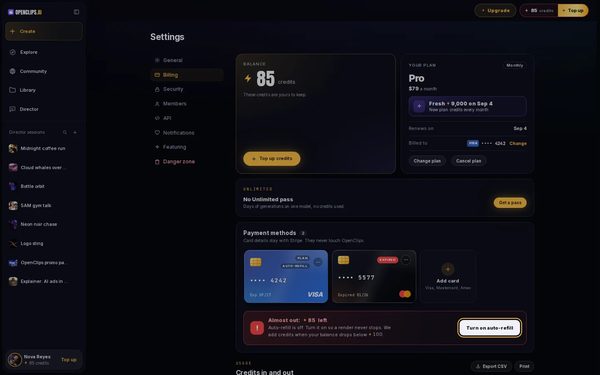
Open Billing
Press your balance in the top bar, then press Usage & billing.
Start Auto-refill
Under your saved cards, press Turn on auto-refill.

Choose the amount and the card
The Credits auto-refill sheet opens. Under Choose a refill amount, press the amount to add each time. If you have more than one card, press the one to charge under Card to charge. Read what you agree to under the button, then press Turn on auto-refill.
Check that it is on
Billing now says Auto-refill is on, with the amount it adds and the balance that starts it.


What you get
Your credits refill on their own when your balance runs low, and Billing says Auto-refill is on.
Tips and limits
- Press Change beside Auto-refill is on to pick another amount or card.
- Once you have paid, the Top up credits tab of the Plans sheet has Turn on auto-refill too.
If something goes wrong
- Billing says Auto-refill needs a saved card: add a card in Billing first.
- Billing shows Set up instead: press it. The same sheet opens.
- Your role can’t turn it on: ask an admin of the workspace.
Questions
How do I turn Auto-refill off?
In Billing, press the switch beside Auto-refill is on. Auto-refill turns off at once, and nothing more is charged.
How often can Auto-refill charge me?
The sheet shows a monthly limit before you turn it on, and the line under Turn on auto-refill says what you agree to. Press Change beside the limit to pick another.
Do I need a saved card?
Yes. Auto-refill charges a card you saved in Billing. A one-off top-up can take a new card at checkout.
Are refill credits mine to keep?
Yes. A refill is a top-up, so its credits are yours to keep. See How credits work.
Related
Steps checked in the app Updated