
GuideVideo
Edit and upscale a video
The short answer
To upscale a video, open its menu in your Library, choose Edit video, pick an upscale and press Run. To change what happens in a clip, add it in the composer to a model that edits clips and say what to change.
On this page6 sections
Before you start
What you need
- A finished video in your Library.
- An OpenClips account.
Who can use it
Every plan: Free, Starter, Creator, Pro and MAX.
Models marked with a lock unlock with your first purchase.
What it costs
From ⚡6 a clip. See every price
That is the price to change a clip. An upscale shows its own price on Run before you press it.
Steps
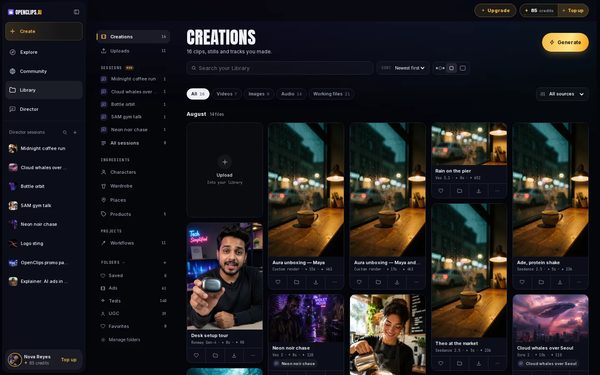
Open your Library
Press Library in the App menu. Your videos are under Creations.
On a phone: Open the menu and tap Library. Your videos are under Creations.
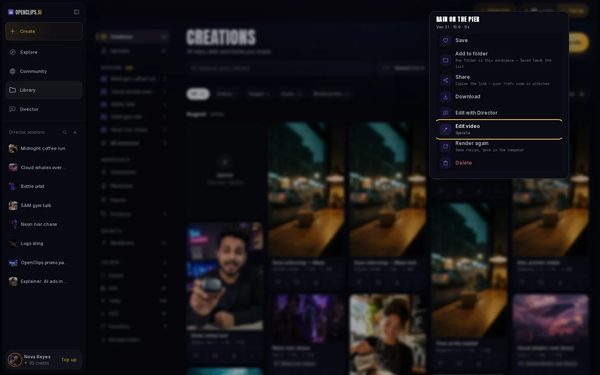
Open the video's menu
Press ⋯ on the video’s card.
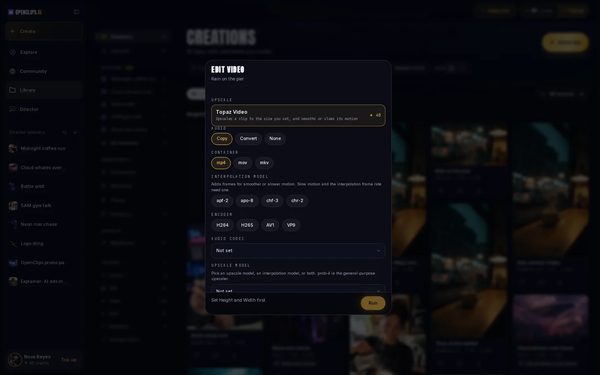
Choose Edit video
Choose Edit video. The sheet lists the edits for this video by kind, each with what it does and its price.
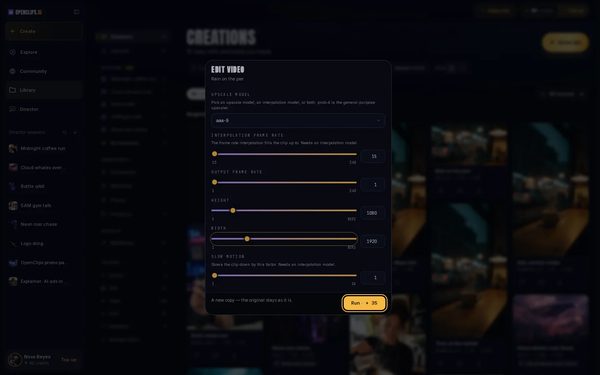
Upscale it
Under Upscale, pick one and fill in the settings it asks for. Until they’re set, the line beside Run says what’s missing. Press Run: the new copy lands beside the original, which stays as it is.
To change what happens, pick a model that edits clips
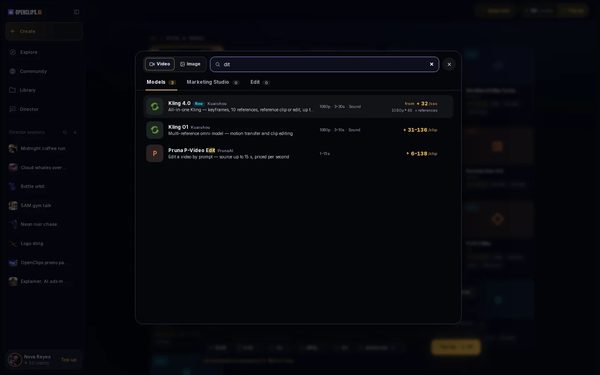
Press Create, then Change on the model card. Type edit in the search box, and Models lists the models that edit a clip. Pick one.

Add your clip
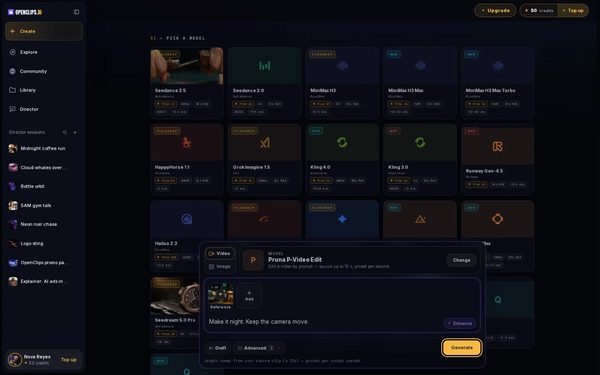
Press + and choose From your Library. Open Videos, pick the clip and press Add 1 file.
On a phone: Tap +, then From your Library. Open Videos, tap the clip and tap Add 1 file.
Say what to change
Write what to change in the prompt, and what to keep. For example: “Make it night. Keep the camera move.” Press Generate.


What you get
A new copy of your video, upscaled or changed, in your Library under Creations. The original stays as it is.
Tips and limits
- An edit works on a finished video. Wait for a render to finish before you edit it.
- To make a video that only borrows a clip’s motion or look, see Use reference photos and videos.
- See what models do with a clip on the Video to Video page.
If something goes wrong
- An upscale is greyed out: the clip is too long for it. The row says how long a clip it takes.
- The button says Top Up instead of Generate: your balance is too low for this edit.
- The edit failed: a failed render gives its credits back.Fix
Questions
Does an edit change my original video?
No. Edit video makes a new copy, and the original stays as it is. Both are in your Library.
Why don't I see Edit video on a card?
The video must be finished. A card that is still rendering, or that failed, has no Edit video.
How do I change only part of what happens?
Say in the prompt what to change and what to keep, like “Make it night. Keep the camera move.”
Related
Steps checked in the app Updated