
Run a workflow
The short answer
Open a workflow from Explore, add the photo it asks for with Add your photo, then press Make my free film. OpenClips runs every step of the workflow for you, and your film plays on the workflow page when it is ready.
On this page6 sections
Before you start
What you need
- One photo of what the workflow asks for: your face, your product or your pet. Each card says which.
- An OpenClips account. You can open a workflow without one, and you sign up when you press Make my free film.
Who can use it
Every plan: Free, Starter, Creator, Pro and MAX.
Models marked with a lock unlock with your first purchase.
What it costs
From ⚡2 a clip. See every price
That is the price of one clip. A workflow film runs one or more steps. Your first film on a workflow page is free.
Steps
Open Explore or Community
Press Explore in the App menu. Its rows hold workflows, grouped by what they make. Community lists more.
On a phone: Tap the menu, then Explore. Community lists more.
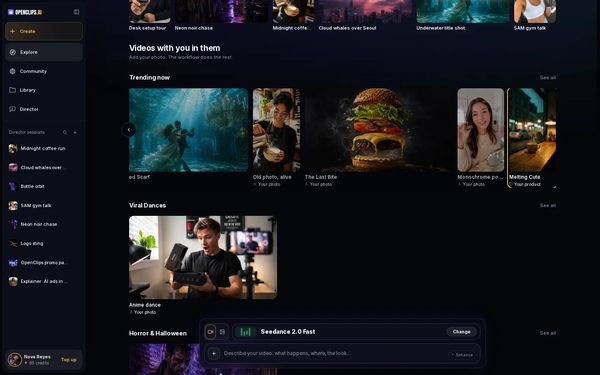
Pick a workflow
Scroll to a row and press a card. Each card says what the workflow needs, like Your photo or Your product.
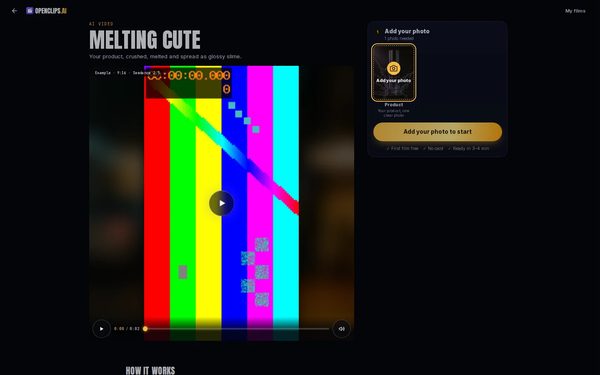
Open its start
The workflow page opens, with the example film beside Add your photo.
On a phone: The example film plays full screen. Tap Recreate, and the workflow’s start opens over the film.
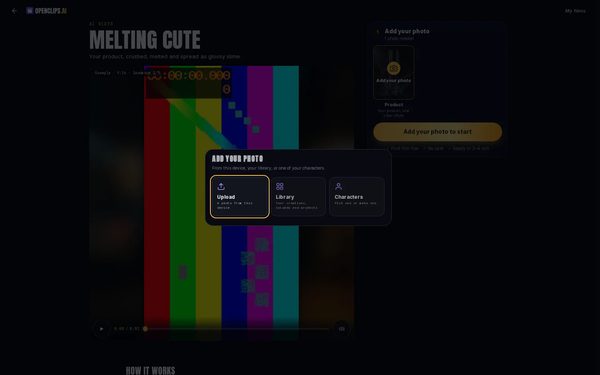
Add your photo
Press Add your photo, then Upload and pick your photo. Library and Characters take a photo you already have in OpenClips.
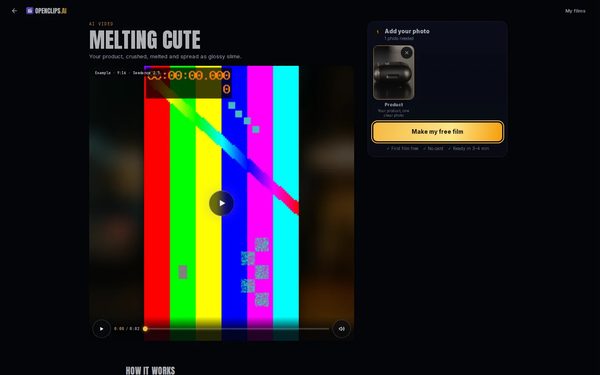
Make your film
Press Make my free film. The button names what the workflow still needs until every photo is in.
Watch it being made
The page turns into Making your film, one piece for each step of the workflow. You can close the tab: OpenClips emails you the link when the film is ready.
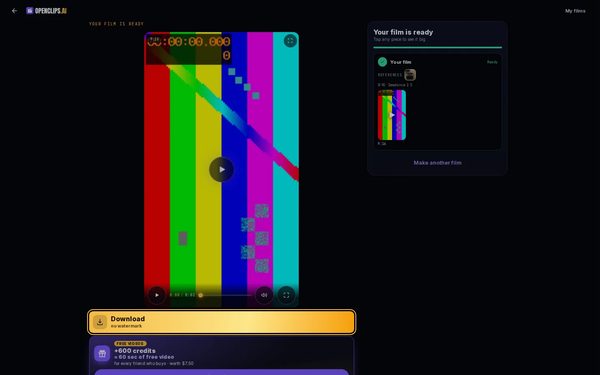
Get your film
When the page says Your film is ready, play your film on the page. Download sits under the film.


What you get
A finished film made from your photo, playing on the workflow page, with Download under it. OpenClips also emails you its link.
Tips and limits
- After your free film, the button reads Make my film.
- Some workflows let you set Format, Length and Quality under Your film before you start.
- Some workflows offer Use our sample for a photo, so you can try the workflow before you add your own.
If something goes wrong
- The button says Add your photo to start: the workflow still needs a photo. Press Add your photo.
- Make another film asks you to pick a plan or a top-up: your free film is used.
Questions
Do I need to write a prompt?
No. The workflow’s prompts are shown on its page under The prompt, and every step runs from them. You only add what the workflow asks for.
Is my first film free?
Yes. Your first film on a workflow page is free, and you need no card. See Your free film.
Can I leave while my film is being made?
Yes. While your film is being made, the page tells you OpenClips will email you the link and that you can close the tab. Open the link to come back to your film.
Where do I find more workflows?
Community has more, filed by category, like Halloween, UGC ads and product films.
Related
Steps checked in the app Updated