What Is Gemini Omni Flash? Google’s Video Model Explained
Gemini Omni Flash is Google’s fast video model that turns any mix of text, images and video into a short clip with its dialogue, room tone and effects already in it, and lets you change that clip by typing what to change.

Scene select — 8 scenes
Gemini Omni Flash is Google’s fast video model that turns any mix of text, images and video (plus voice in Google’s own apps) into a short clip with its dialogue, room tone and effects already in it, and lets you change that clip by typing what to change. Google introduced it at I/O in May 2026, shipped Omni 1.1 Flash on 27 August (scene extension, keyframes, fast drafts, upscaled output) and Omni 1.2 Flash on 5 November (longer native clips, better editing). In the Gemini API it replaced the Veo 3.1 Preview models, which shut down on 22 October 2026. On OpenClips you can run Omni Flash 1.1, Omni 1.2 Flash, 1.2 Flash Edit and 1.2 Flash Extend from one composer.
For ads, the short version: Omni Flash is the cheap, quick Google model for talking clips, long single takes and fixes to a clip you already have. Veo 3.1 is the one you pay more for when one short shot has to look like a commercial.
What is Gemini Omni Flash?
Google calls Gemini Omni a model that can “create anything from any input”, and it starts with video. Omni Flash is the first and fastest model in that family. Three things set it apart from a classic text-to-video model:
- Mixed inputs in one prompt. Google’s launch post says you can combine images, audio, video and text. At launch the only audio input was voice, and video references are short clips, a few seconds each per DeepMind’s page.
- Sound comes with the picture. Google’s API docs describe its videos as coming with their own audio track. Dialogue, room tone and effects arrive in the same file, so there is no second sound pass.
- Editing by conversation. You ask for a change in plain words (“swap the mug”, “make it evening”) and each edit builds on the last one.
Every video made with Omni carries Google’s invisible SynthID watermark. DeepMind adds that content made or edited in the Gemini app, Google Flow or YouTube also carries C2PA Content Credentials.
The three versions so far
| Version | Date (Google) | What it added |
|---|---|---|
| Gemini Omni Flash | May 2026, at I/O | Video from any input, built-in sound, conversational edits. Gemini app, Flow, YouTube Shorts Remix |
| Gemini Omni 1.1 Flash | 27 August 2026 | Scene extension (reads the end of a clip and keeps extending it in steps), first and last frame, low-resolution drafts, upscaled high-resolution output, Gemini API |
| Gemini Omni 1.2 Flash | 5 November 2026 | Longer native clips, set in one-second steps, multi-turn editing, stronger consistency of faces, garments and packaging, API price 30% lower than 1.1 |
In Google’s own side-by-side tests, 1.2 beats 1.1 in all 11 categories it lists, for example 63% to 37% overall preference for reference-to-video and 62% to 38% for visual consistency in text-to-video. These are Google’s numbers, not ours, and the page gives no sample sizes.
At Google, Omni Flash runs in the Gemini app and Flow for Google AI Plus, Pro and Ultra subscribers, at no cost in YouTube Shorts Remix and the YouTube Create app for users 18 and over, and in the Gemini API. With 1.2, Google added 15-second clips in Google Vids at no additional cost, and 15-second videos in the Gemini app are rolling out to Ultra subscribers.
Is Veo being replaced by Omni Flash?
In Google’s developer API, partly yes. Google’s video docs say the Veo 3.1 Preview in the Gemini API was shut down on 22 October 2026, and the deprecations page lists veo-3.1-generate-preview, veo-3.1-fast-generate-preview and veo-3.1-lite-generate-preview as shut down on 22 October 2026, with gemini-omni-1.2-flash as the replacement. The docs now say to use Omni Flash for video generation, or the GA models on Google’s Gemini Enterprise Agent Platform.
So Veo is not gone. It left the Gemini API preview, and Omni Flash is the model Google’s docs point you to there. On OpenClips, Veo 3.1 and Veo 3.1 Fast are still in the model picker, as our Veo 3.1 tutorial explains.
One more date if you build on the API: the same page lists gemini-omni-1.1-flash for shutdown on 3 December 2026, with 1.2 as its replacement.
Gemini Omni Flash on OpenClips: versions, settings and prices
OpenClips runs four Omni models from the same composer, with the same settings and the same price in the app, the REST API and the MCP server. Omni Flash 1.1 is on the card below; the three 1.2 models have their own pages: 1.2 Flash, 1.2 Flash Edit and 1.2 Flash Extend.
| Modality | Video |
|---|---|
| Length | 4s to 10s |
| Resolutions | 360p, 720p, 1080p, 4k |
| Audio | Available |
| References | Up to 6 |
| Price | from ⚡17 per render (from $0.018/s) |
| Model on OpenClips | What goes in | What you pay for |
|---|---|---|
| Gemini Omni Flash 1.1 | Text, one image, or a set of reference images | The length you render |
| Gemini Omni 1.2 Flash | Text, a first frame, a first and last frame, reference images, short reference videos | The length you render |
| Gemini Omni 1.2 Flash Edit | One clip, a plain-words instruction, reference images | The seconds of the clip you bring |
| Gemini Omni 1.2 Flash Extend | One clip, a prompt for what happens next, reference images | Only the new seconds |
All four make 16:9 or 9:16 video, so pick vertical in the composer before you render. Sound is built in: Omni Flash mixes its own dialogue, room tone and effects, and the model page says there is no switch to turn it off. The exact price for your settings is on the Generate button before you spend anything.
On OpenClips, 1.2 costs less per second than 1.1 and runs longer, so start there. The 1.2 models open with your first purchase of any plan or credit pack.
A workflow that keeps the bill low:
- Write the prompt and render one short draft at the lowest resolution to check the wording and the action.
- Fix what the draft got wrong, then render the take at the standard resolution.
- Change details with Edit, or add a few seconds with Extend, instead of starting over.
- Pick a higher resolution only for the one take you publish, and only if the placement needs it.
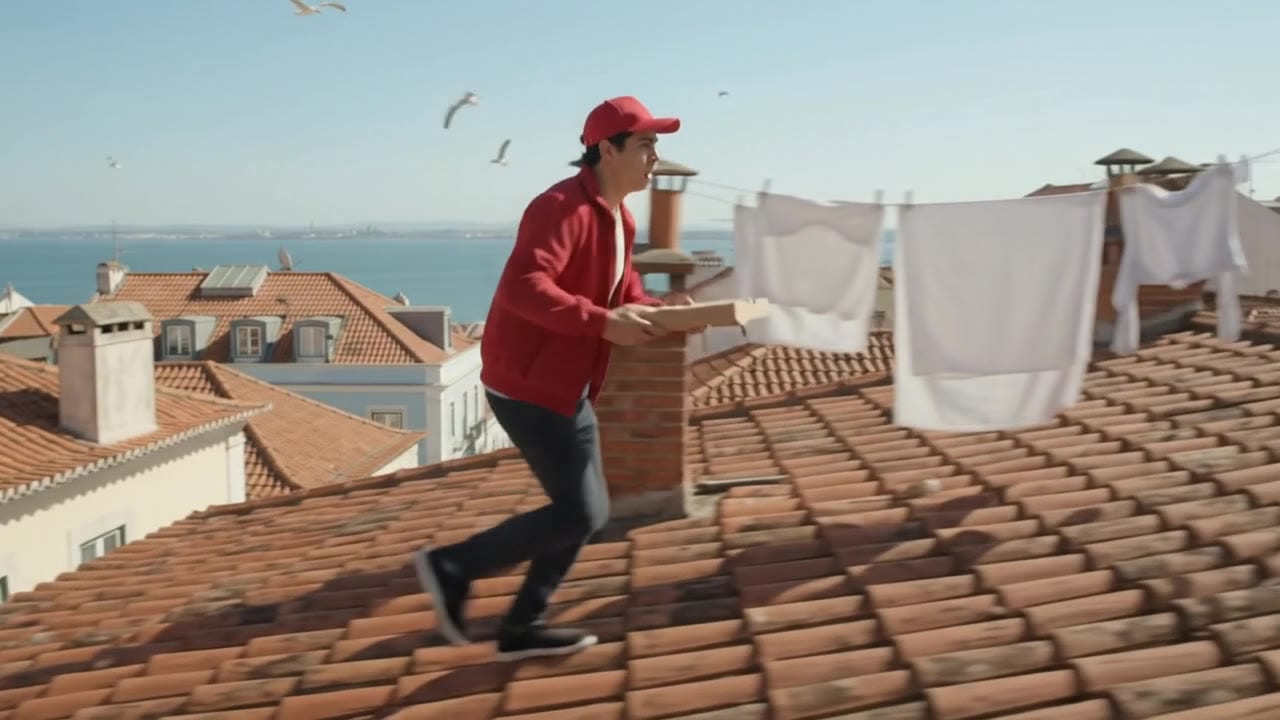
One continuous take: a courier in a red cap runs across sunny rooftops holding a plain pizza box, stops at a blue door, a woman in a bathrobe says “You’re late.”, he hands the box over and answers “You’re welcome.” Footsteps, wind, gulls and both lines come from the model, in the same pass.
Veo 3.1 vs Omni Flash: which one for ads?
Both are Google models in the OpenClips picker that make their own sound, and they suit different jobs. The Veo cards carry their catalog facts.
| Modality | Video |
|---|---|
| Length | 4s to 8s |
| Resolutions | 720p, 1080p |
| Audio | Available |
| References | Up to 3 |
| Price | from ⚡326 per render (from $0.337/s) |
| Modality | Video |
|---|---|
| Length | 4s to 8s |
| Resolutions | 720p, 1080p |
| Audio | Available |
| References | Up to 3 |
| Price | from ⚡123 per render (from $0.127/s) |
| Gemini Omni 1.2 Flash | Veo 3.1 | Veo 3.1 Fast | |
|---|---|---|---|
| Sound | Always on | On or off per render | On or off per render |
| Edit or extend a clip | Yes, with 1.2 Edit and 1.2 Extend | No | No |
For the same short take at the standard resolution, one Veo 3.1 take costs about as much as nine Omni 1.2 Flash takes.
Pick Omni Flash when:
- someone talks to camera and the line is the ad (UGC, testimonials, a founder hook)
- you need a long single take instead of stitching short clips
- you already have a clip and want one thing changed or a few more seconds added
- you want several variations cheaply before you pick a winner
Pick Veo 3.1 when:
- it is a product hero shot that has to look like a TV spot
- you want control over sound (Veo lets you switch audio off per render)
- a short shot is enough and you are paying for polish
Watch: Veo 3.1 Tutorial: a Product Ad From One Photo (Veo 3.1 Fast vs Veo 3.1) From 1:31 you see the same espresso ad on Veo 3.1 Fast and Veo 3.1, which is the polish the higher price buys.
For the full Veo walkthrough, see the Veo 3.1 tutorial. For how other models stack up on product ads, see MiniMax H3 vs Seedance 2.5.
What Omni Flash is good for in ads
Talking UGC. Omni Flash makes the voice, the room sound and the lip movement in one pass. Put the line in quotes, say who says it, and keep to about two words a second, so an 8-second take holds about 15 words. It speaks in its own generated voice. If you want a face to speak a voice recording you already have, use a model that takes a photo plus an audio track, such as OmniHuman 2.0 (a different model with a similar name).
Edits by instruction. With 1.2 Flash Edit you upload one clip and type the change: a different shirt, your product in her hand, evening light. You keep the take that worked and pay for one edit instead of re-rolling the whole shot and hoping the performance comes back.
Longer single takes. Hook, demo and reaction in one continuous shot, or a few more seconds on a clip you already have. Our guide to longer AI video covers when to extend and when to cut.
Real people doing ordinary things. DeepMind says Omni has an intuitive understanding of gravity, kinetic energy and fluid dynamics. In ads that shows best in plain gestures: a hand pours, a hand passes a box, a slice lifts off a plate.

A pizzaiolo in a plain apron spirals sauce with a ladle and tosses mozzarella, a pizza goes into a wood-fired oven on a peel, and a woman lifts the first slice in a long cheese pull. A hand does the work in every beat, which is why the food reads as real. The prompt asked to end close on the cheese pull; the last two seconds pull back to a wide shot of the room, so plan to trim the end in the editor.
5 Gemini Omni Flash ad prompts to copy
They follow what worked in the takes above: one action per sentence, every object held by a hand or resting on a surface, the line in quotes, the sound written out. Attach your product photo as Image 1. For the structure behind them, see our video prompt formula.
Vertical selfie video filmed on a phone held in her left hand, natural daylight in a bright bathroom. A woman in her early thirties with shoulder-length brown hair and a grey cotton T-shirt looks into the lens. Her right hand holds the serum bottle from Image 1 at chest height, label toward the camera. She says: "I tried five serums this year, and this is the one I finished." She tilts the bottle slowly toward the lens with her right hand. She smiles and nods once. Sound: soft room tone and her voice, close and clear.
A man in his forties in a navy apron stands at a wooden kitchen counter, filmed from a phone on a stand at chest height. The hand coffee grinder from Image 1 rests on the counter in front of him. His right hand tips a paper bag and pours coffee beans into the grinder, then sets the bag down on the counter. His left hand holds the grinder steady. His right hand turns the crank slowly, three full turns. He looks up at the camera and says: "Thirty seconds of this and the whole kitchen smells like a cafe." He smiles and keeps his hand on the crank. Sound: beans rattling into the grinder, the dry crunch of grinding, morning birds outside the window.
A small flower shop in the afternoon, sunlight through the front window. A florist in her fifties with grey hair and a green apron stands behind a wooden counter. A young man in a denim jacket stands across the counter from her. She lifts a bouquet wrapped in brown paper from the counter with both hands and holds it out to him. She says: "Tell her you picked them yourself." He takes the bouquet with both hands and laughs. He says: "I'll tell her you said that." The camera stays at eye level beside the counter the whole time. The shot ends on him holding the bouquet against his chest. Sound: paper rustling, a door chime in the distance, both voices.
Replace the white mug in her right hand with the green ceramic mug from Image 1, same size, held the same way. Keep her face, her hair, her words, her hand movements and the camera exactly as they are.
Continue the shot from the last frame. She lowers the bottle with her right hand and sets it on the bathroom shelf beside the sink, label facing out. She lets go of the bottle. She looks back into the lens and smiles. Sound: the soft clink of glass on the shelf and the same room tone.
Prompt 5 adds no new dialogue on purpose: let the original clip carry the line and use the extra seconds for a quiet ending. For hook ideas to put in front of these, see the 15-second UGC ad formula.
Limits and gotchas
- Sound is always on. If you plan to lay music under it later, keep the prompt’s sound to room tone and one voice.
- No voice input on OpenClips. Omni Flash takes no voice recording here, so it always speaks in its own voice.
- Match the prompt to the length. A long story squeezed into a short take skips beats. Write plain sentences, no timestamps, and an end state.
- Endings can drift. Our pizzeria take ended wide when the prompt asked for a close-up. Check the last seconds of every take.
- On-screen text is still risky. Keep it to one or two big words at most, or add captions in the editor.
- The higher resolutions are upscaled. Google describes them as upscaled output, so get the take right at the standard resolution first.
- Watermark. Every Omni clip carries Google’s invisible SynthID, and OpenClips passes renders through unchanged. Paid OpenClips plans export without an OpenClips mark; commercial use is not on the Free plan.
Want to try it on your own product? Open Gemini Omni 1.2 Flash on OpenClips and render your first take.
New to OpenClips? Start free, ⚡30 on signup, no card.
Sources
Read on 9 November 2026.
- Google, “100 things we announced at I/O 2026” (20 May 2026)
- Google, Gemini Omni announcement
- Google DeepMind, Gemini Omni model page
- Google, “Gemini Omni 1.1 Flash lets you build with more control” (27 August 2026)
- Google, “Introducing Gemini Omni 1.2 Flash” (5 November 2026)
- Gemini API docs, video generation
- Gemini API docs, deprecations
- OpenClips model pages: Omni Flash, Omni 1.2 Flash, 1.2 Flash Edit, 1.2 Flash Extend
- OpenClips pricing
- OpenClips prices: price quotes for each setting on 9 November 2026 (the Generate button shows the exact price for your settings)