
GuideVideo
How to use Veo
The short answer
Open Create, press Change and pick a Veo model, then write your shot in the prompt and press Generate. Your video lands in your Library under Creations.
Before you start
What you need
- An idea for one shot, and a photo if you want the video to start on it or look like it.
- An OpenClips account. You can start without one and sign up when you press Generate.
Who can use it
Starter, Creator, Pro and MAX.
Models marked with a lock unlock with your first purchase.
What it costs
From ⚡123 a clip. See every price
The Generate button shows the exact price before you press it. It depends on the model, the length and the quality.
Steps
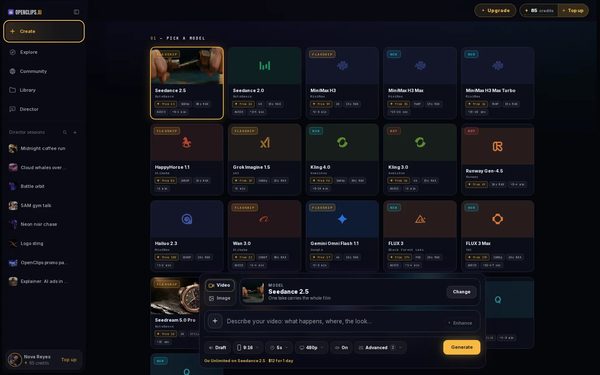
Open Create
Press Create in the App menu. The composer opens.
On a phone: Tap Create in the menu. The full-screen Create video composer opens.
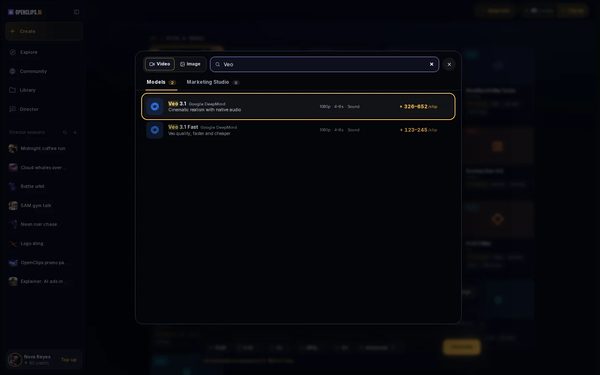
Find Veo in the picker
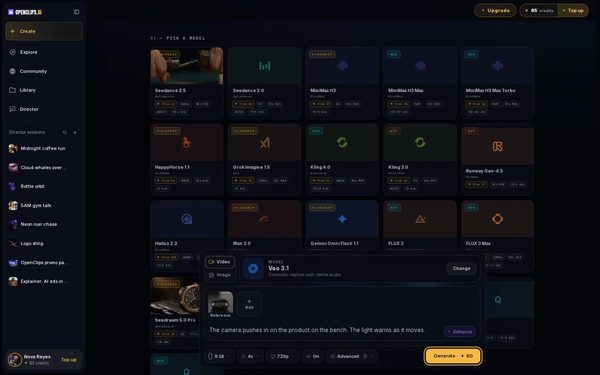
Press Change on the model card. The picker opens on Models. Type Veo in the search box.

Pick a Veo model
Press the model you want. The model card above the prompt now shows it.

Add a photo if you want one
Press + next to the prompt and choose Upload from your device. Your photo appears beside the prompt, and its tile says how the model uses it, such as Reference. Press the tile to change that.
On a phone: Tap +, then Take a photo or Upload from your device. The photo’s tile says how the model uses it, such as Reference.
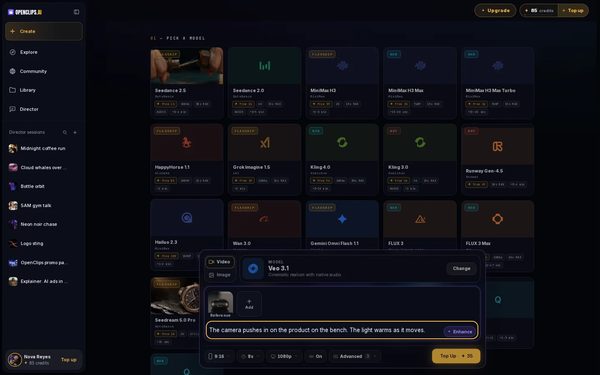
Write the shot
Write what happens in the prompt: who or what is in the shot, what they do and how the camera moves. For example: “The camera pushes in on the product on the bench. The light warms as it moves.”
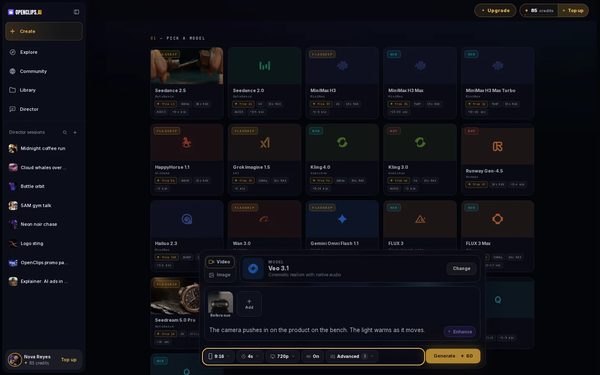
Choose the settings
Use the pills under the prompt to choose from what the model you picked offers. Every option shows its own price.
On a phone: Use the tiles under the prompt, such as Shape, Length and Quality.
Press Generate
Press Generate. The button shows the exact price in credits before you press it, and credits are taken only when the render starts.
Find it in your Library
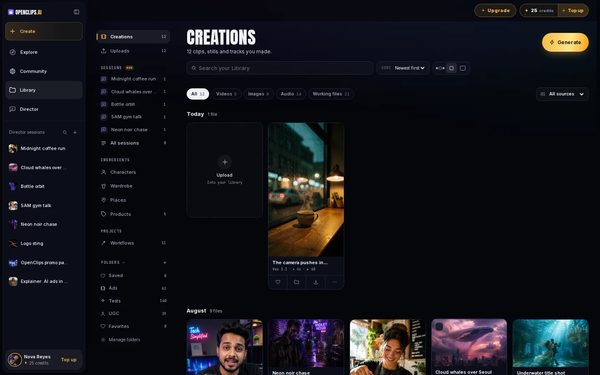
Your video lands in your Library, under Creations. While it renders, its card says how long that model usually takes.


What you get
A video made with Veo, in your Library under Creations.
Tips and limits
- If the button says Top Up, try a shorter length or a lower quality. Every option shows its own price.
- To start a video on a photo with any model, see Animate a photo and the Image to Video page.
- For how to brief Veo, and renders of our own, read the Veo 3.1 tutorial on The Cut.
- Each Veo model has its own page with its specs and price, starting with the Veo page.
If something goes wrong
- The video failed: a failed render gives its credits back.Fix
- The button says Top Up instead of Generate: your balance is too low for this video.
- A model shows a lock.Explainer
Questions
Which Veo model should I pick?
The picker shows each model’s price beside its name. The table under What each model offers on this page lists what each one makes, and each model’s page has the rest, starting with the Veo page.
Can I start a Veo video from my own photo?
Press + next to the prompt and choose Upload from your device. The add menu says what the model you picked takes, and if that model can’t use a photo, the menu names one that can. See Animate a photo.
What is Veo?
Veo is a family of video models made by Google. For what it does well and our own renders, read the Veo 3.1 tutorial on The Cut.
Related
Steps checked in the app Updated