
GuideVideo
Make a Reel or an explainer on your phone
The short answer
On your phone, tap Create, then Reel or How-to video under the composer, and describe your idea. Director asks a few questions, writes the script for you to approve and films the video.
On this page6 sections
Before you start
What you need
- An idea in a few words, a link or a few photos. Rough is fine.
- An OpenClips account.
Who can use it
Every plan, after your first purchase.
What it costs
From ⚡17 a clip. See every price
Each scene is filmed as a clip. Before you press Create video, the last step shows the whole price: the start, charged then, and the filming, charged when you approve the storyboard.
Steps
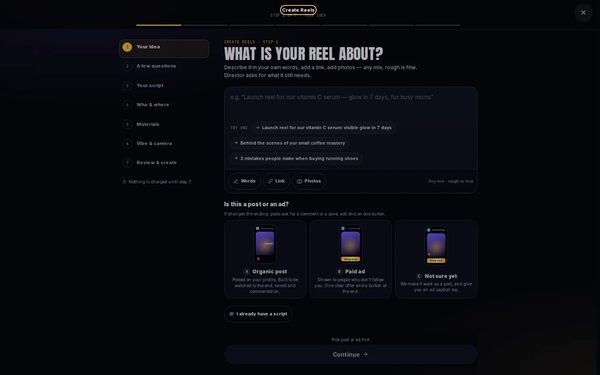
Open Reel or How-to video
On a computer, open Create Reels for a Reel or Create Explainer Video for an explainer.
On a phone: Tap Create in the menu. Under the composer, tap Reel for a Reel or How-to video for an explainer.
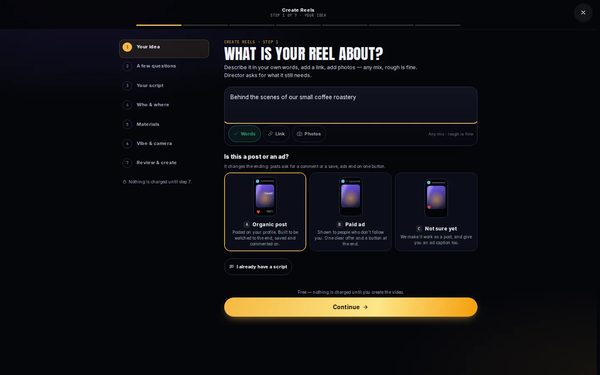
Describe your idea
Write what the video is about in the box. For a Reel, answer Is this a post or an ad?, then press Continue.
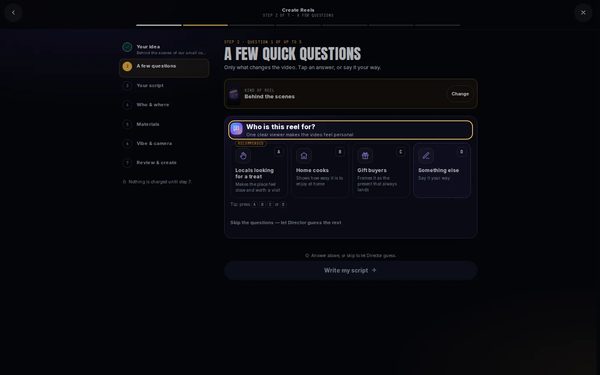
Answer a few questions
Pick the kind of video. Director then asks a few questions: pick an answer, or press Skip the questions. On the plan, pick the length and the language and press Write my script.
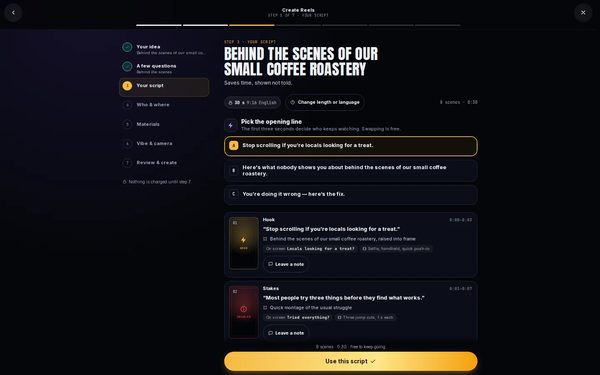
Approve the script
Read the script scene by scene. To change a scene, press Leave a note under it. When it reads right, press Use this script.
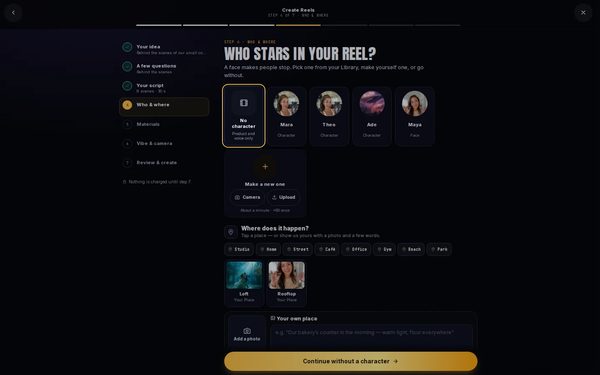
Pick who and where
Pick a character from your Library, or No character, then a place and a voice, and press Continue.
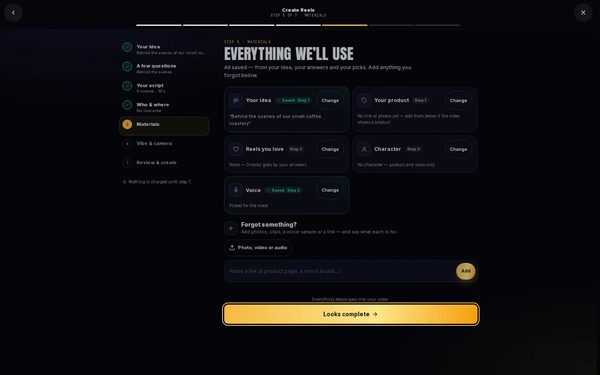
Check the materials and the look
Check what Director will use and press Looks complete. Then pick the look and the camera and press Continue.
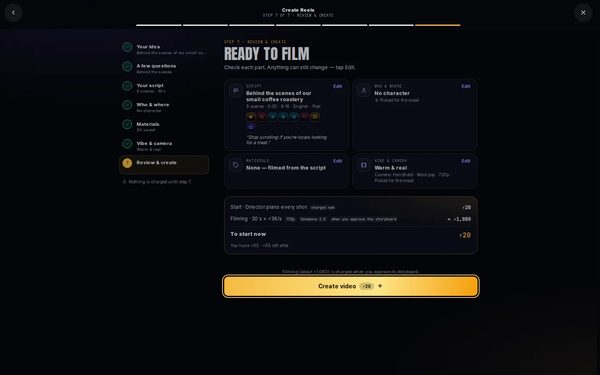
Review and create
Check each part, then press Create video. Director plans every shot and shows you the storyboard to approve before it films.


What you get
Your Reel or explainer, filmed scene by scene from the script you approved. It lands in your Library.
Tips and limits
- Pick the kind of video that matches your idea best. Director marks the best fits first.
- Add a link or photos of your product on the first step, and Director uses them.
- Your draft is kept when you close the builder. Open the same one again to carry on.
- See what a Reel can be on the AI Reel Maker page.
If something goes wrong
- Reel or How-to video shows Unlock: your workspace can’t use them yet. Press it to see the plans.
- Your balance is too low when you press Create video: OpenClips asks you to top up, then starts the video.
- The video failed: a failed render gives its credits back.Fix
Questions
What is the difference between a Reel and a how-to video?
A Reel is a short vertical video for Instagram, TikTok and Shorts. A how-to video explains a product, an idea or a process, with steps and a voice-over.
Do I need to be in the video?
No. On Who & where, pick No character, and the video is the product and a voice-over.
When am I charged?
Nothing is charged until you press Create video. The start is charged then, and the filming when you approve the storyboard.
Can I make one on a computer?
Yes. Open Create Reels or Create Explainer Video. The steps are the same.
Related
Steps checked in the app Updated