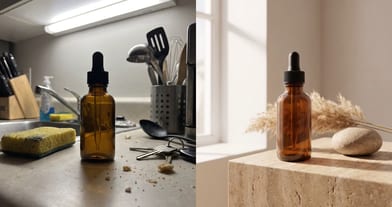
How to Turn a Product Link Into a Video Ad With AI (2026)
Paste the exact product page URL into a tool that reads the page, check the name, photos and description it pulls, pick a template or model, and describe one simple action with the real product.
Scene select — 8 scenes
To turn a product link into a video ad with AI, paste the exact product page URL into a tool that reads the page, check the name, photos and description it pulls, pick a template or model, and describe one simple action with the real product. On OpenClips that is Marketing Studio: paste the link, click Find my templates, pick a match such as Product hero, say what happens, and generate at 720p. A 15 second cinematic template ad is quoted at ⚡597; the exact price is on the Generate button.
You do not need the product on your desk, a studio, or a film crew. You need a good product page. Below: what the AI takes from your link, which pages work, three ways to build the ad, formats per placement, prompts to paste, and the mistakes that make it look fake.
What the AI reads from a product link
A product link is a bundle of facts and pictures. When you paste one into Marketing Studio, OpenClips reads the page and builds a product card from it. In our mug walkthrough it picked up the name and brand from the page and re-ranked the templates for that product, best matches first. In Generate the same import works with a model: paste the page link and the product comes in on its own, its photos become the reference images, and the card is saved in your Products so you can edit the details later.
Here is what each part of the page does for the video:
| From the page | What the AI uses it for | What to check |
|---|---|---|
| Product photos | The visual reference for the product in every shot (in Seedance 2.5 the imported photos become the reference images; the cinematic templates bind the first photo as Image 1) | Label, logo, colour and shape match the real item |
| Product name and brand | On-screen text, the product card in your library, the label the render has to get right | Spelling, the right variant (size, colour) |
| Price | A field on the product card | Often empty after an import; fill it in if your script needs it |
| Description and claims | The short product description OpenClips writes for you | Delete anything you cannot back up |
After you pick a template, OpenClips fetches the details and writes the description itself. That text steers the script, so read it before you generate.
Which product page links work best
The output can only be as good as the page. Our own product library shows the pattern. A software homepage came back with nothing but its two social share images and a price of 0. A company homepage gave one branded banner. Even real product pages often imported with a single photo, and some with no price at all.
So treat the import as a draft and check the card in your Products before you spend credits.
Links that work well:
- The exact product URL. The page for the item and variant you want to advertise, not the shop home or a collection grid.
- Several clear photos. Front, side and in-use shots give the model more angles, so the product holds its shape when the camera moves.
- Readable text on the page. Name, price and a plain description in the page itself, not only inside images.
- A product you actually sell. Supplier and marketplace pages import fine, but only advertise what you can ship.
If the page is thin, you are not stuck. Marketing Studio takes a link, a photo, a few words, or any mix, so you can add a clean photo and a line of description next to the link. If the page photos are dark or cluttered, make a few clean studio stills first (our AI product photography guide shows how) and add them alongside.
Selling an app or software rather than a physical product? A homepage makes a weak card for a template built around a bottle or a box. Use the Apps & software group instead (“your real screens, sold by a presenter”). Its Sales explainer template is built on your site link: the crawl grounds both the facts and the screens in the ad, and it runs from 10 to 30 seconds.
How to turn a product link into a video ad, step by step
There are three routes on OpenClips. All three start from the same link and keep the product in your library, so the next ad (a Black Friday offer or a Cyber Monday cut, say) starts with the product already in.
Watch: How to Make Product Videos Without the Product (AI Video Ads From a Link or One Photo) At 0:20 the link goes in and Find my templates reads the mug’s name and brand, and at 1:24 the same flow picks the cinematic Lifestyle montage and switches it to vertical.
Route 1: Marketing Studio templates (no prompt writing)
- Open Marketing Studio on openclips.ai and paste the product link.
- Click Find my templates. It reads the page and ranks the templates for this product. Click See all matches to browse them.
- Pick a template. The page lists 110 video and image templates today, grouped by occasion. For a product ad from a link, start with Cinematic brand films: Product hero (one product, studio light, 15 s) or Lifestyle montage (short cuts of the product inside a real day). Click a template to watch an ad made with it before you pay anything.
- Click Use this template. The product from your link is already added; give it a moment to pull the details and write the description.
- Say what happens in the video in a few plain sentences (briefs below).
- Choose the size and length, keep 720p, check the price on the button, and click Generate. The ad renders in your Library, usually a few minutes later.
Marketing Studio also has UGC Ads, a separate route with a creator on camera, covered in our AI UGC ads guide.
Route 2: your own commercial with Seedance 2.5
For full control, skip templates. Open Generate, click Change and pick Seedance 2.5, then add your product by pasting its page link. It imports on its own, its photos become the references, and it is saved in your Products.
Watch: How to Make an AI Commercial With Seedance 2.5 (One Product Link) At 0:24 the link import, and at 1:27 the four-part prompt structure that holds the product steady.
Add an avatar if you want a face: take a photo with your camera or upload one clear face photo, name it, then call it in any prompt with @Name. You can also give the avatar a voice so it can talk (our consistent character guide goes deeper). Then write the prompt in four parts: what it is, what must not change (the avatar and the product), a shot list with timings, and the style and sound. The card below has Seedance 2.5’s price, and its renders usually take 2 to 6 minutes.
| Modality | Video |
|---|---|
| Length | 4s to 30s |
| Resolutions | 480p, 720p, 1080p, 4K |
| Audio | Available |
| References | Up to 30 |
| Price | from ⚡51 per render (from $0.052/s) |
This is also the route for a talking person. Write a short UGC-style clip: your avatar holds the product, looks into the lens and says one line. Seedance 2.5 speaks English most reliably, so keep the spoken line in English.
Route 3: ask for it from chat
Prefer to brief it from Claude or ChatGPT? Connect your assistant to OpenClips over MCP (the address is in Settings, API & MCP), describe the ad in one sentence, and the agent drafts the shot list with the model, ratio, references and the credit quote before it renders. The cut lands in the same library. See direct ads from chat for how the connection works.
Best video ad format for each placement
One link can feed every placement, but each placement wants its own shape. The rule from our headphone video is short: pick by where it plays.
Watch: AI Product Video Generator: Make a Product Video Ad From One Photo It starts from a saved product, not a fresh link; from 1:02 it builds the store-page ad with Product hero and the brief “slow, moody, studio light”.
| Placement | Shape | Template or model | Length | ⚡ (template quotes from 16 Nov) |
|---|---|---|---|---|
| TikTok, Reels, Shorts | 9:16 | Seedance 2.5 UGC-style clip or vertical commercial | Short | On the Seedance 2.5 card |
| Store page, website hero, YouTube | 16:9 | Cinematic: Product hero, Lifestyle montage | 15 s or 30 s | ⚡597 (15 s), ⚡1,167 (30 s) |
| Short cinematic loop | 16:9 | Cinematic 10 s formats | 10 s | ⚡221 |
| Any placement, full control | 9:16, 16:9, 1:1, 4:3, 3:4 or 21:9 | Seedance 2.5 in Generate | Your choice | On the Seedance 2.5 card |
Three details from the template specs are worth knowing. The cinematic templates are English only and have no talking person, so use a Seedance 2.5 prompt when you want someone speaking. The cinematic product templates are built on a product photo, so a link with no clean photo will hold them back. And the 10 second cinematic formats are locked to that length and the middle resolution.
For feed placements on Meta, square or 4:5 usually fills more of the screen than widescreen; check what each template offers in the Ad size filter, and see the aspect ratio cheat sheet for every spec. If you are building a full Meta set, Meta ads with AI shows how to test them.
Keep the middle resolution as your default. Template ads render at it at most, and on Seedance 2.5 the top resolution costs about two and a half times as much. Make the 9:16 and 16:9 versions as two separate renders rather than cropping one, so nothing important falls off the frame.
Copy-paste prompts for product link video ads
Templates write their own shot-by-shot prompt from your brief, so the brief is where all the staging happens. Before you generate, check five things:
- Hands: one hand on the product at a time, every hand attached to a person, and every action listed in order.
- The set: a plain wall or open space behind people, because mirrors and window glass can make the render duplicate bodies.
- The camera: one simple move per shot, and the phone or camera that films never appears in its own footage.
- The product: exactly one unit, front label to camera, opened only at the moment it is used.
- The words: no claim, price or review the product page does not back up, and no prices or offers typed into the prompt.
The prompts below follow those rules and are starting points: replace the words in brackets with your product. Every action is a slow, ordinary human gesture, because a product that moves by itself is the fastest way to look fake. For the thinking behind the structure, see our video prompt formula.
The [PRODUCT] rests on a dark stone plinth in a quiet studio.
Slow, moody side light from the left.
A hand enters from the right, turns the product a quarter turn, and leaves the frame.
The camera holds still, then pushes in slowly until the label fills the centre.
Ends on the label, sharp and readable.
Three short moments in one ordinary day with the [PRODUCT].
Morning: a woman at a kitchen counter in soft side daylight lifts the [PRODUCT] with her right hand, label to camera.
Midday: she sits on a park bench and uses it once, the normal way, with one hand: [ONE PLAIN ACTION, e.g. takes a slow sip].
Dusk: she sets it down on a balcony table with one hand, city lights soft and far behind her.
One product in every moment, exactly as in the photos, no mirror or glass behind her.
What it is: a 15-second warm TV commercial for [PRODUCT], photoreal live action, 16.
Lock: Image 1 and Image 2 are the product photos imported from its page. Keep its shape, colour and label exactly as in the photos in every shot. @[AVATAR] keeps the same face, hair and outfit throughout.
Shot list:
0 to 4 s: wide shot of a sunny kitchen, @[AVATAR] walks to the counter where the [PRODUCT] stands.
4 to 8 s: medium shot, she picks it up with her right hand and turns the label toward the camera.
8 to 12 s: close shot, she uses it once, the normal way: [ONE PLAIN ACTION].
12 to 15 s: she sets it down on the counter, label to camera, and the camera holds still on it.
End state: the [PRODUCT] on the counter, label sharp and centred, @[AVATAR] softly out of focus behind it.
Style and sound: soft morning light, gentle warm grade. A quiet kitchen ambience, the soft tap of the product on the counter at 13 s, light acoustic guitar underneath. No spoken lines.
Run this prompt →
What it is: a 10-second vertical UGC-style clip for [PRODUCT], photoreal, 9, filmed from @[AVATAR]'s own outstretched left arm.
Lock: Image 1 is the product photo imported from its page. Keep its shape, colour and label exactly as in the photo. @[AVATAR] keeps the same face, hair and outfit throughout. The phone that films her is never in frame.
Shot list:
0 to 3 s: @[AVATAR] stands in front of a plain cream wall in soft daylight, looks into the lens and holds the [PRODUCT] in her right hand at chest height, label to camera.
3 to 8 s: she says, in English: "[ONE SHORT LINE YOUR PAGE BACKS UP, about ten words]"
8 to 10 s: she brings the [PRODUCT] a little closer to the lens with her right hand and smiles.
End state: the [PRODUCT] in her right hand, label sharp and readable, her face just behind it.
Style and sound: natural daylight, her voice clear and close, a quiet room tone, no music.
Run this prompt →
Add exact prices, offers and calls to action as text after the render. Video models still misspell typed words, so an offer written into the prompt can come back garbled.
Keep it honest: real product, real claims
A link-built ad is only useful if the buyer receives what they saw.
Show the real product. Use the page’s own photos as the reference and check every frame where the product appears: label, logo, colour, cap shape. If the render invents a detail, regenerate. If your variant has no photo on the page, add one rather than letting the model guess.
No invented claims. The auto-written description and every spoken line must stay inside what your page and records can prove. “Keeps coffee hot for hours” needs a spec on your page. When in doubt, describe the use, not the result.
Do not pass an AI person off as a real customer. An avatar in a UGC-style clip looks like someone filming their own phone. Present it as an ad, not as a verified review, and follow each platform’s rules on labelling AI-generated people.
Mistakes that make product link ads look fake
- Pasting the shop home or a category page. You get the wrong item or no clean photos. Link the exact product.
- Skipping the product card. One photo and a missing price are common after an import. Add photos and fix the details before you generate.
- Trusting the auto description blindly. It is a draft. Cut claims, fix the variant name, check the price.
- Asking the product to act on its own. Lids that open themselves and bottles that float read as fake. Write a hand that opens, pours or turns.
- One format for every placement. A widescreen hero cropped to 9:16 loses the product. Render each shape.
- Rendering at the top resolution first. Test at the middle one, keep the winner, and spend the difference on more variations.
Paste your product link in Marketing Studio and see which templates fit before you spend a credit. Until 30 November, yearly plans come with bonus credits you keep (Starter ⚡500, Creator ⚡1,800, Pro ⚡5,000, MAX ⚡14,500), and Starter is $63 for the first 12 months; see pricing.
New to OpenClips? Start free, ⚡30 on signup, no card.
Sources
- OpenClips on YouTube, How to Make Product Videos Without the Product (AI Video Ads From a Link or One Photo): link and photo routes in Marketing Studio, Find my templates, what the import reads, Lifestyle montage, render time.
- OpenClips on YouTube, How to Make an AI Commercial With Seedance 2.5 (One Product Link): link import in Generate, saved products, avatar and voice setup, four-part prompt.
- OpenClips on YouTube, AI Product Video Generator: Make a Product Video Ad From One Photo: Product hero for the store page, pick by placement.
- OpenClips Marketing Studio: inputs, Find my templates, 110 video and image templates, Cinematic brand films and Apps & software groups, preview before paying.
- Direct ads from chat: how an assistant briefs, quotes and renders over MCP.
- OpenClips Pricing: signup credits, plan comparison, commercial use, Black Friday terms.
- OpenClips model data, template specs and price quotes, read on 16 November 2026: Seedance 2.5 price grid, render times, formats and languages; cinematic and software template inputs, lengths and quotes.