How to Animate a Photo With AI: 6 Ways to Make a Picture Move
Upload a photo as the first frame, crop it to the ratio you will post in, write a short prompt that says what moves and what the camera does, and render a short take. What decides whether the clip still looks like your photo is the detail: the image slot, how much moves, and which defaults to switch off.
Scene select — 9 scenes
To animate a photo with AI, upload it to an image-to-video model as the first frame, crop it to the ratio you will post in, write a short prompt that says what moves and what the camera does, and render a short take. Add a last frame when you know where the shot must end, and use a talking-photo model when the person should speak. The exact price for your settings is always on the Generate button before you render.
What decides whether the clip still looks like your photo is the detail: the image slot, how much moves, and which defaults to switch off. For a ranking of free tools, see Best Free Image-to-Video AI Tools in 2026.
Pick your route in ten seconds
| Your photo, your goal | Model on OpenClips | Image slot |
|---|---|---|
| Any photo, sound written in the same pass | Seedance 2.5 | First frame |
| A short test of a motion idea | HappyHorse 1.1 | First frame |
| Big, energetic motion from one image | Kling 3.0 | First frame |
| Go from photo A to photo B | Wan 2.7 | First + last |
| Photo A to B, sound and all, in a longer take | FLUX 3 Max | Opening + closing frame |
| Clean cinematic product shot | Veo 3.1 Fast | First frame |
| Make the photo say your audio | OmniHuman 2.0 | Portrait + audio clip |
Each model’s lengths, resolutions, sound and starting price are in the spec cards at the end of this post, straight from the catalog. Prices change, and the exact price for your settings is always on the Generate button.
1. First frame or reference: tell the model what your photo is
Every image-to-video model reads your upload in one of two ways. Pick the wrong one and the photo stops looking like itself.
| Slot | What the model does | Use it when |
|---|---|---|
| First frame | The clip opens on your exact picture, then moves from there | You love the photo as it is: framing, light, face |
| Reference image | The model studies the face or product and builds a new shot | You want the same person or product in a new place or pose |
First frame is what most people mean by “animate a photo”: the composition holds, so keep the move small. Reference is for “put this in a new scene”; each model’s reference limit is on its spec card.
Watch: MiniMax H3 Tutorial: Product Video Ads Without ComfyUI. At 0:33 you see the upload and the “first frame” pick that makes the video start on the photo.
Prep the photo before you upload (two minutes, saves a render):
- Crop it to the ratio you will post in. On Wan 2.7, HappyHorse and Kling 3.0 image-to-video the picture sets the frame, so a landscape photo gives you a landscape clip. Crop to 9:16 for Reels and TikTok first. Seedance 2.5 has an “adaptive” ratio that follows the image. Our aspect ratio cheat sheet has the size per placement.
- Use the sharpest copy you have. The model can only keep detail it can see. HappyHorse also refuses stills with a short edge under 300 px.
- Remove what you don’t want to move. Text, watermarks and logos on the photo tend to warp once the frame moves. Add text in the editor afterwards.
- Write motion, not description. The model already sees the photo. Spend your words on what changes.
2. First + last frame: when you know where the shot ends
Give the model one photo to open on and one to land on, and it fills the motion between them: a gift box opened by hand, a neutral face to a smile.
| Model | First + last frame in the composer |
|---|---|
| Wan 2.7 | Yes, “optionally a last” |
| MiniMax H3 | Yes, “pin the first and last frame” |
| FLUX 3 Max | Yes, opening and closing frame |
| P-Video 2 Pro | Yes, “where it starts and where it lands” |
| Veo 3.1 / Fast | No Frames to Video field |
| Kling 3.0 | No, “no frame pair” |
We have not run P-Video 2 Pro ourselves yet; the line above is from its model page.
The rule that makes frame pairs work: both photos must share the same camera position and the same light. If the last frame is shot from a new angle, the model has to fly the camera there and you get warping instead of motion. Make the second photo by editing the first (same scene, one change) rather than shooting a new one.
For products there is one more use: make your real product photo the last frame, so the label in the final shot is your label, not one the model drew.
Watch: Seedance 2.5 vs 2.0 for AI Product Ads: I Tested Both (Every Prompt). From 11:44 the shot starts on a hand holding the bottle and ends on the original product photo; the first try arrives a second early, and after giving the move its own last two seconds it lands on the last frame at 12:33.
Image 1 is the first frame, Image 2 is the last frame. One continuous shot, the camera stays locked on a tripod above the table.
0 to 2 s: the closed white gift box rests on the wooden table in soft window light from frame-left.
2 to 4 s: two hands enter from the bottom of the frame, fingers lift the lid and set it down beside the box.
4 to 5 s: the hands leave frame and the open box with the candle inside matches Image 2. Hold.
Keep the table, light and camera position identical in every frame.
Run this prompt →
Image 1 is the first frame, Image 2 is the last frame. Same person, same clothes, same background, camera locked at eye level.
0 to 2 s: she looks into the lens with a neutral face and blinks once.
2 to 4 s: she breathes in and the corners of her mouth lift.
4 to 6 s: a full, relaxed smile that matches Image 2. Hold.
Her face, hair and earrings stay exactly as in the photos.
Run this prompt →
3. Move the camera or the subject, not both
Every bit of motion is something the model invents, so the cleanest animations move either the camera or the subject and keep the other still.
| You want | Write | Keep still |
|---|---|---|
| A living photo, “it breathes” | One small subject motion: a blink, hair in wind, steam, a hand settling | “The camera stays locked” |
| A cinematic photo, “we move into it” | One camera move: slow push-in, slow pan left, gentle orbit | “The people and objects hold still” |
| Drama | One subject action plus one slow camera move | Everything else |
One camera move per shot. “Push in, then orbit, then tilt up” in 5 seconds reads as a shaky mess. Seedance 2.5 has no camera-lock switch, so you lock the camera in words, and its negative prompt field does the rest.
Here is a real first-frame render from our library, with the exact prompt and settings:
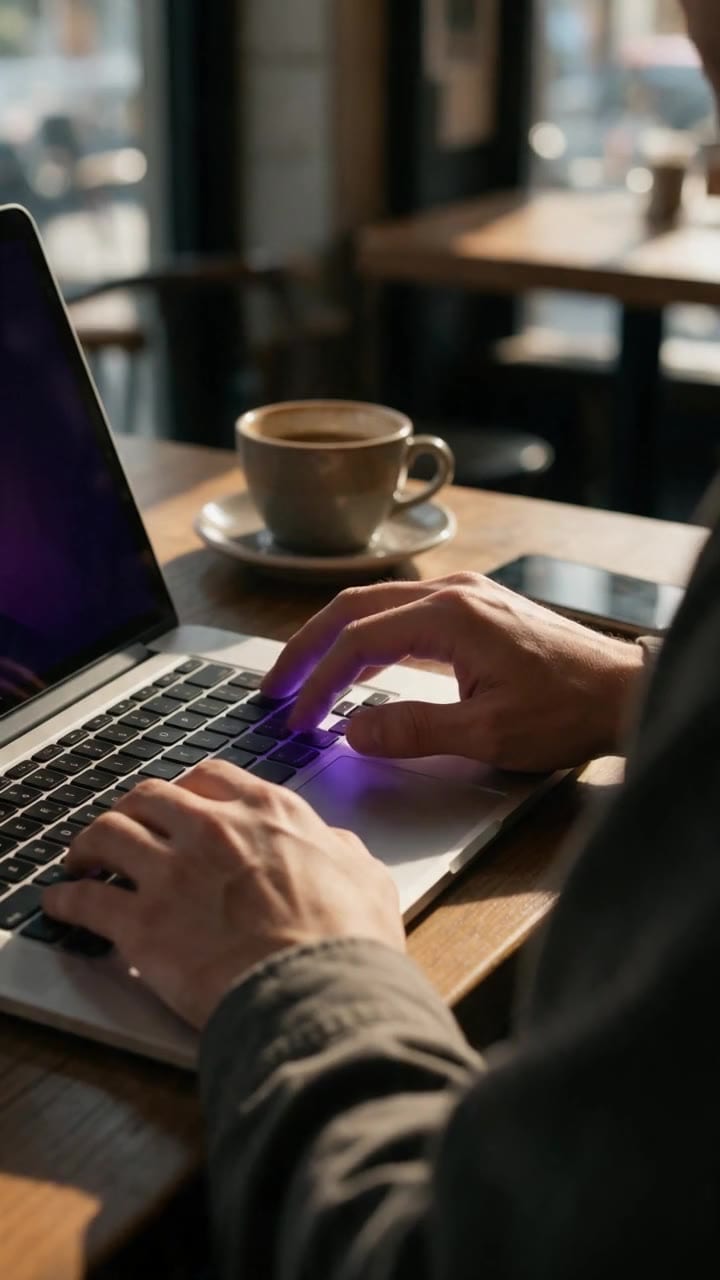
Use the attached image as the first frame of this single continuous shot. 0-1 s: the right index finger presses the Enter key firmly once and lifts. 1-3 s: both hands slide back and rest flat on the table edge in front of the laptop. 3-5 s: the hands hold still, steam rises from the cup on the left. End state: hands resting on the table edge, violet screen glow on the fingertips. The camera stays locked. Preserve the hands, sleeves, laptop, cup and window light. Audio: one crisp keyboard click at 0.5 s, then soft café murmur and a cup clink at 3 s.Run this prompt →
| Setting | Value we used |
|---|---|
| Image slot | First frame |
| Aspect ratio | Adaptive (came out 9:16, like the photo) |
| Audio | On |
| Negative prompt | cuts, zoom, camera shake, new objects, extra hands, text, logos, music, speech |
Steal the shape: timed beats, one action per beat, a written end state, a camera line, a “preserve” line, a named sound. The negative prompt carries the “don’ts”, so the prompt only describes what is there. Same pattern as The Video Prompt Formula, cut to 5 seconds.
Before you render on Kling 3.0, check two switches: Multi-shot is on by default, which can cut your single photo into several shots, so turn it off for one continuous move. Its sound is switched off by default; set it to native if you want the sound line below.
Animate this photo as one slow cinematic push-in toward the center of the frame over 5 seconds.
The water ripples gently and the clouds drift slowly to the right.
The buildings, trees and horizon stay solid and unchanged. The frame holds only water, sky and buildings.
Soft wind and distant water sound.
Run this prompt →
4. Make a person in a photo talk
Pick by where the words come from:
| You have | Use | What to know |
|---|---|---|
| A recorded line (your voice note, a voiceover) | Dreamina OmniHuman 2.0 | One portrait plus your audio. Talking, expressions, gestures, a gentle camera. It will not walk or pick up a product. Price follows the audio |
| An English script | Seedance 2.5 | Speaks quoted English lines natively; with a trained avatar it keeps the same face. Its native speech is reliable in English only |
| A script in another language | A voiceover, then OmniHuman 2.0 | Voice the script first, then lip-sync the portrait to it |
| No time | Talking Photos and lip-sync workflows in the community library | Add the photo and the line |
More on the model in What Is OmniHuman 2.0?, and all four “video of yourself” routes in AI Video of Yourself.
Watch: AI Avatar Video Generator: Make a Video of Yourself From One Photo (Seedance 2.5). From 0:43 one photo and a 10-second voice line become an avatar that says a scripted line in a Seedance 2.5 render.
You do not always need a trained avatar. In this render from our library a single still selfie is the first frame on Seedance 2.0, and the line he says is written into the prompt, so the photo comes alive and talks in one pass:
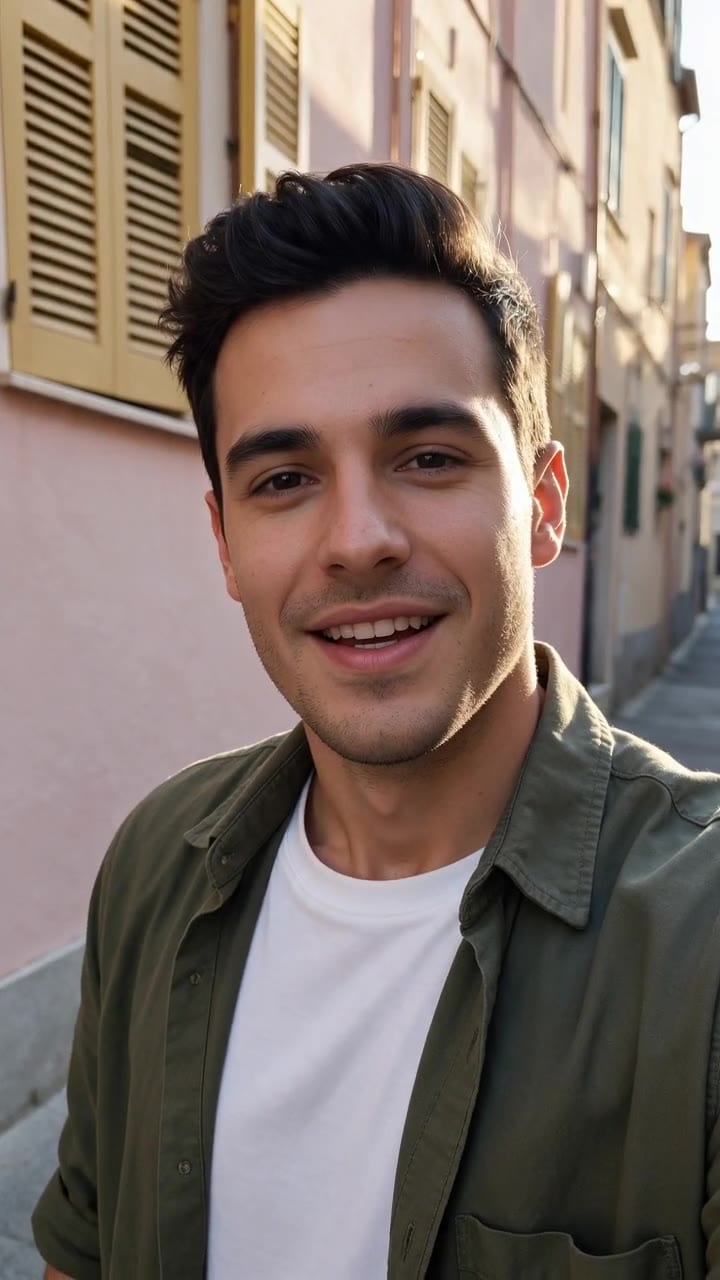
He looks into the lens, smiles and says in Spanish “Y ahora también hablo español”, then smiles with his lips closed.
She looks straight into the lens and speaks warmly, with small natural nods.
Light eyebrow lift on the key words, one open-palm gesture with her right hand halfway through.
The camera holds a steady medium close-up with a very slow push-in.
Keep her face, hair and clothes exactly as in the photo.
Run this prompt →
The audio sets the words, the lips and the length. The prompt only directs expression, gestures and camera. Only animate a real person’s face with their permission, a friend’s selfie included.
5. Animate a product photo
Here the rule flips: the product must not move by itself. A bottle that slides across a table or a lid that opens on its own reads as fake the moment you see it. Move the camera, the light, or a human hand, and keep the label sharp.
Watch: Grok Imagine: Turn One Product Photo Into a Video Ad. At 0:26 the prompt keeps the bottle still so the label stays sharp, while the sauce and the light move and the camera pushes in.
If you use Grok Imagine 1.5 for this, note that its composer opens at its lowest resolution. Switch it up before you render, and know that the attached image adds to the price.
No clean product photo yet? Start with AI Product Photography. For finished ad formats from one photo, Marketing Studio has ready video templates.
Image 1 is the first frame. One continuous shot, camera locked at table height.
0 to 2 s: the jar rests on the marble counter in soft window light from frame-left.
2 to 5 s: a woman's right hand enters from frame-right, fingers wrap around the lid and slowly twist it open.
5 to 8 s: she sets the lid down beside the jar and her hand leaves frame. End state: open jar, lid beside it on the counter.
Keep the label, colors and jar shape exactly as in Image 1.
Sound: soft room tone, a quiet lid twist at 3 s, the lid set down at 6 s.
Run this prompt →
Animate this product photo as a slow orbit of 20 degrees around the bottle, left to right.
A soft beam of warm light sweeps across the background once.
The bottle stays upright and still on its surface, the label sharp and readable as in the photo.
Quiet, warm ambient tone.
Run this prompt →
Put prices, offers and headlines on in the editor after the render. Do not ask the model to write them: Seedance, for one, is weakest at on-screen text.
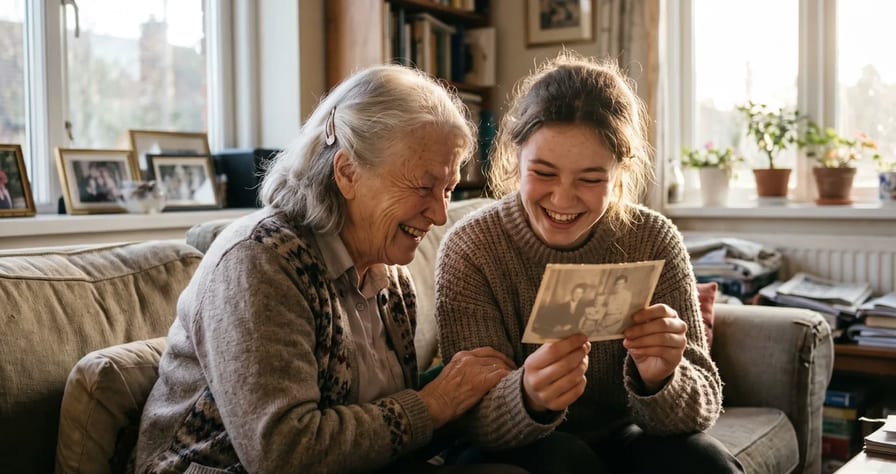
6. Old family photos and portraits
A grandparent’s portrait looks alive with very little motion. Big motion invents a face that was never there.
- Scan, don’t photograph the photo. Glare and an angled phone shot become part of the animation.
- Keep it to about 5 seconds. The longer the take, the more the face drifts.
- Ask for micro-motion only: a blink, a breath, a slight head turn, a soft smile. Lock the camera or use the slowest push-in.
- Keep the era. Say “black and white” or “faded color” so the model does not repaint it modern.
OpenClips animates the photo you give it. It does not restore scratches or colorize in one click, so clean the scan first if you need that.
Add “color, other people, camera movement” to the negative prompt field for Prompt 7.
Image 1 is the first frame, a black-and-white portrait photo. Keep it black and white with the same grain.
The camera stays locked. 0 to 2 s: he blinks slowly once.
2 to 4 s: he breathes in, his shoulders rise slightly, and a faint smile forms.
4 to 5 s: he holds still and looks into the lens.
His face, hair, collar and the background stay exactly as in the photo. He is the only person in the frame.
Audio: quiet room tone, a soft breath at 2 s.
Run this prompt →
Image 1 is the first frame. The camera makes one very slow push-in toward the couple.
The veil moves slightly in a light breeze. Both people blink once and keep their smiles.
Everyone stays in place. Faces, clothes and the background stay exactly as in the photo.
Run this prompt →
All prompts in this post except the one in section 3 are templates. We have not rendered these exact prompts, so treat them as starting points and adjust them to your photo.
7. Fix a bad render before you pay for another
| What went wrong | Likely cause | Fix |
|---|---|---|
| The face no longer looks like the person | Too much motion, or too long a take | One small move, a short take, add “keep her face exactly as in the photo” |
| Warping between the two frames | The last frame has a new angle or new light | Make the last frame by editing the first: same camera, one change |
| The clip cuts to other shots (Kling 3.0) | Multi-shot is on by default | Turn Multi-shot off |
| The clip came back without the sound you wanted | The model you picked writes no soundtrack, or its audio is switched off | Check the Audio row on its spec card, switch audio on, or add sound in the editor |
| Landscape clip from a portrait photo, or the reverse | The image sets the frame on most image-to-video models | Crop the photo to 9:16 before upload |
| Soft, low-detail result on Grok Imagine | Composer opens at its lowest resolution | Switch it up |
| Text or a logo melts | Models redraw text as the frame moves | Remove text from the photo, add it in the editor |
| The product moves by itself | The prompt gave the product an action | Give the action to a hand, the camera or the light |
Money habit: test a motion idea on a short, cheap take before you spend on the final, and render the keeper at the resolution you will post.
Specs and prices, straight from the catalog
Lengths, resolutions, sound and starting prices for the models in this post:
| Modality | Video |
|---|---|
| Length | 4s to 30s |
| Resolutions | 480p, 720p, 1080p |
| Audio | Available |
| References | Up to 30 |
| Price | from ⚡51 per render (from $0.052/s) |
| Modality | Video |
|---|---|
| Length | 3s to 15s |
| Resolutions | 720P, 1080P |
| Audio | None |
| References | Up to 1 |
| Price | from ⚡40 per render (from $0.054/s) |
| Modality | Video |
|---|---|
| Length | 3s to 15s |
| Resolutions | 720p, 1080p, 4k |
| Audio | Available |
| References | Up to 1 |
| Price | from ⚡46 per render (from $0.063/s) |
| Modality | Video |
|---|---|
| Length | 2s to 15s |
| Resolutions | 720P, 1080P |
| Audio | None |
| References | Up to 2 |
| Price | from ⚡41 per render (from $0.084/s) |
| Modality | Video |
|---|---|
| Length | 5s to 20s |
| Resolutions | 720p, 1080p, 2K, 4K |
| Audio | Available |
| References | Up to 2 |
| Price | from ⚡174 per render (from $0.143/s) |
| Modality | Video |
|---|---|
| Length | 4s to 8s |
| Resolutions | 720p, 1080p |
| Audio | Available |
| References | Up to 3 |
| Price | from ⚡123 per render (from $0.127/s) |
| Modality | Video |
|---|---|
| Length | 4s to 120s |
| Audio | Available |
| References | Up to 1 |
| Price | from ⚡58 per render (from $0.059/s) |
For takes longer than one pass, see How to Make Longer AI Videos.
One photo, one move, one render. New to OpenClips? Start free with ⚡30 on signup, no card.
Sources, read on 4 November 2026: the OpenClips model pages for Seedance 2.5, Veo 3.1, Kling 3.0, Wan 2.7, MiniMax H3, FLUX 3 Max, HappyHorse, Grok Imagine 1.5 and Pruna P-Video 2; the OpenClips model catalog and price preview; our render #51061; and our YouTube walkthroughs (MiniMax H3 tutorial, Seedance 2.5 vs 2.0, the AI avatar video generator, and Grok Imagine product video ads).